Review Results and Manage Waivers
A Policy Gateway groups one or more Firewall Enterprise proxy repositories under a single set of policies. The Policy Gateway, not each individual proxy repository, is the place where you review what Firewall Enterprise has found, decide what to allow, and check components before your builds fetch them.
One Finding and One Waiver Per Policy Gateway
Firewall Enterprise records each finding against the Policy Gateway, not against the individual proxy repository that happened to serve the download.
Tip
A finding is the record Firewall Enterprise keeps for a component it evaluated: its policy violations and whether it is quarantined.
What does this mean for you?
No duplicate findings. When the same component is downloaded through two or more proxy repositories in one Policy Gateway, it appears once, with one set of policy violations.
One waiver covers every proxy repository. Waivers are created at the Policy Gateway (or above), so they apply whichever proxy repository serves the component, including proxy repositories added later.
Release from quarantine applies to the whole Policy Gateway. A released component is released for every proxy repository in the Policy Gateway.
Each finding names one proxy repository: the first one that served the component. Firewall Enterprise does not keep a list of the other proxy repositories that served it.
Configure at the Policy Gateway, Not on its Proxy Repositories
So that every proxy repository in a Policy Gateway reaches the same decision for the same component, the following settings are made at the Policy Gateway level or above (i.e., on the Policy Gateway container or an organization above it) and apply to all of its proxy repositories:
Policy waivers, including bulk waivers and waiver requests
Component labels
License overrides
Security vulnerability status overrides
Good to Know
Different file paths keep separate findings. A finding is tied to the component's path in the repository. If two proxy repositories serve the same component at different paths (for example NuGet V2 and V3 feeds, or PyPI mirrors with different file layouts), you see one finding per path. One waiver at the Policy Gateway still covers all of them.
Creating, approving, revoking, or updating a waiver does not update a component's recorded evaluation by itself. Until the component is evaluated again, a waived violation shows Unapplied Waiver and any quarantined component stays quarantined.
Sonatype Firewall is unchanged. Repositories under a traditional repository manager keep their findings, waivers and settings per repository.
Policy Gateway Results
Policy Gateway Results is the place to review, waive and re-evaluate everything Firewall Enterprise has found across a Policy Gateway's proxy repositories.
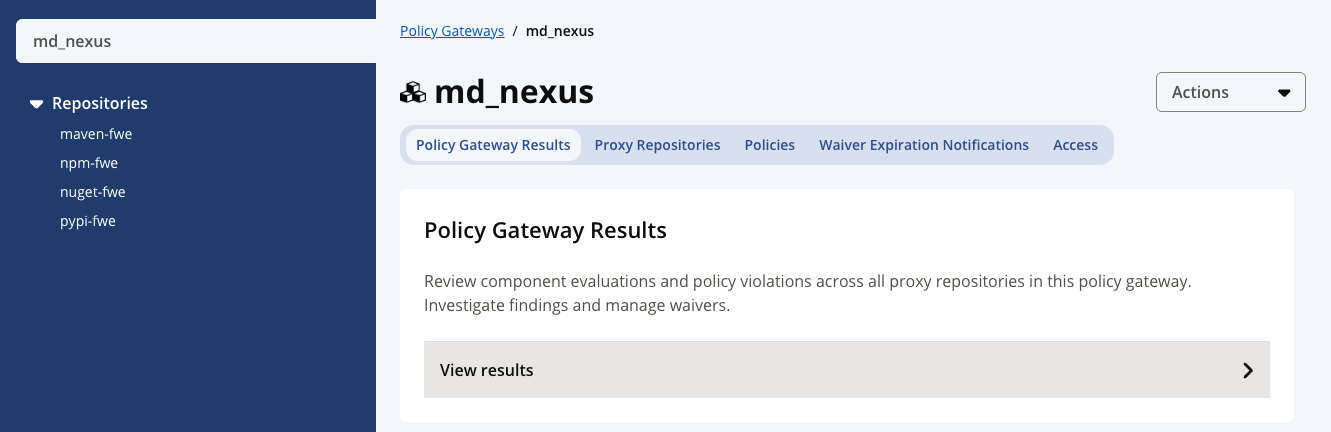 |
Go to Repos and Policies and expand Policy Gateways.
Select a specific Policy Gateway. At the top of its page, the Policy Gateway Results tile describes the page; select View results to navigate to the actual results.
The Policy Gateway Results page includes the following information:
Page Area | What it shows |
|---|---|
Summary section |
|
Results table | Threat, policy, evaluation time, quarantine time and component. Filter on any column or use Filter. Select a row to open the component. |
Aggregate by component | On by default: one row per component, showing its highest-threat violation. Turn it off to list every violation separately. |
Re-evaluate a Policy Gateway
Selecting the Re-Evaluate button runs every proxy repository in the Policy Gateway against current policies and the latest Sonatype data. It runs in the background and can take a while for large Policy Gateways.
Note
The button appears only for users with the Evaluate Individual Components permission on the Policy Gateway.
Waive Violations in Bulk
Select Bulk Waive button to make the violations in the table selectable.
Select the violations that you wish to waive; then, select Next.
Choose your desired Scope for the waiver. By default, it selects that the waiver be scoped to the individual Policy Gateway. However, you can also opt to waive at the Policy Gateway container or root organization level.
Choose whether you wish to waive Exact or All Versions of the selected components.
If desired, set a waiver expiration period.
Optionally, add a waiver reason and any additional comments.
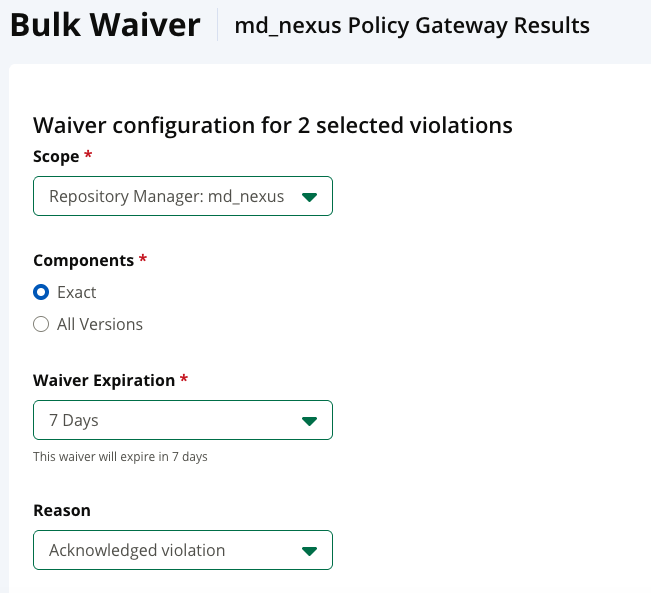
Select Next to navigate to the confirmation screen; then, select Submit.
Note
Waivers will not be applied until the impacted components are re-evaluated.
Waive a Single Violation
Select a row in Policy Gateway Results to open the component’s detailed view.
Select the Policy Violations tab; then, select the specific violation you wish to waive.
Select Add Waiver.
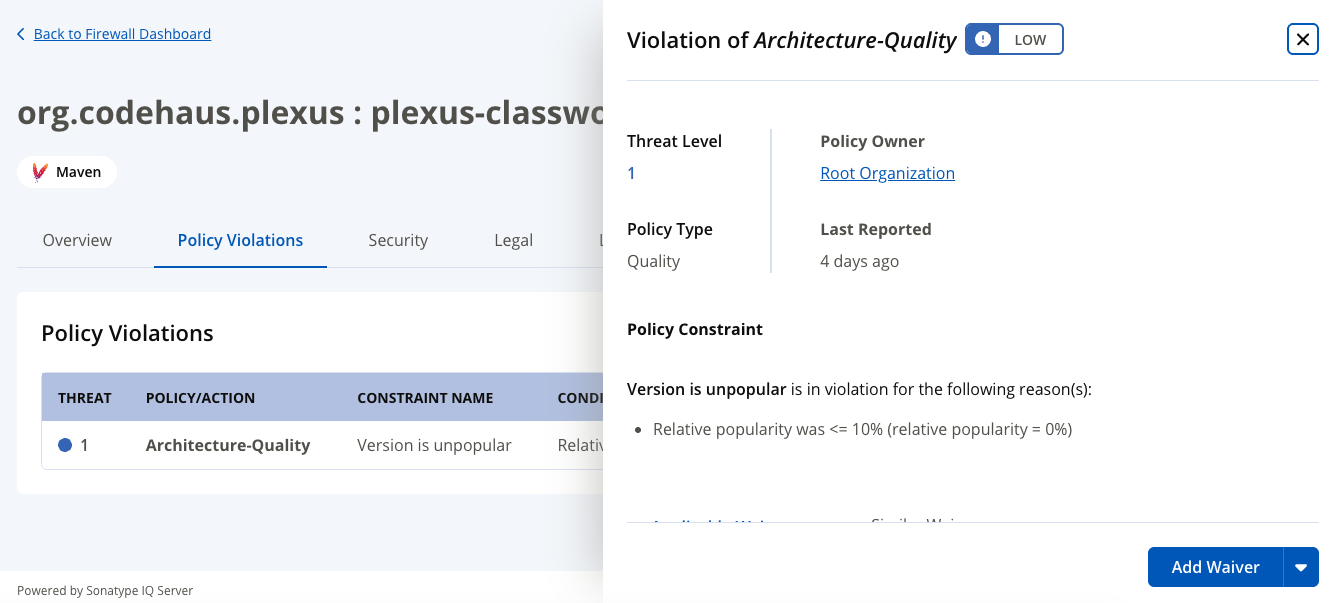
Choose your desired Scope for the waiver. By default, it selects that the waiver be scoped to the individual Policy Gateway. However, you can also opt to waive at the Policy Gateway container or root organization level.
Choose whether you wish to waive the specific version, all versions, or all components.
If desired, set a waiver expiration period.
Optionally, add a waiver reason and any additional comments.
Select Submit.
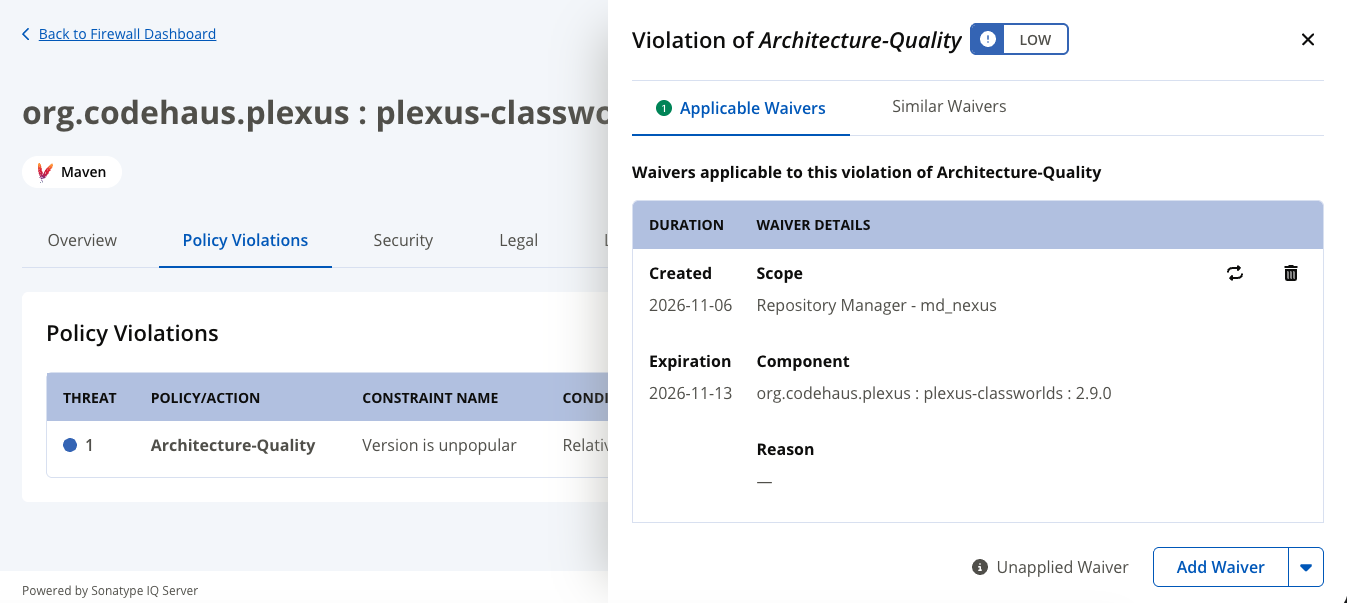
The waiver will appear in the Applicable Waivers section of that violation’s detail panel. It will not be applied until the component is re-evaluated.
 |
Applying a Waiver
Creating, approving, revoking, or updating a waiver does not update a component's recorded evaluation by itself. Until the component is evaluated again, a waived violation shows Unapplied Waiver and any quarantined component stays quarantined.
To apply a waiver straight away:
Select Re-evaluate Component (or Re-Evaluate on Policy Gateway Results). This applies the waiver and releases the component for every proxy repository in the Policy Gateway.
Wait for the repository manager's caches, or invalidate them. See Refresh Metadata After a Change.
Refresh Metadata After a Change
Repository managers and package clients can keep metadata they received before a policy or waiver change. To check the new behavior:
Confirm the policy or waiver change is in effect.
Wait for the repository manager's metadata and negative caches to expire, or invalidate the proxy repository's cache in the repository manager if you need to check sooner.
Clear the package client's cache if needed, then retry the request.
Tip
Use cache settings that suit production, and avoid unnecessary invalidation: it increases traffic to Firewall Enterprise and the public registry.