Firewall Enterprise (FWE)
With Firewall Enterprise, the Sonatype CLI runs supported package manager commands and checks downloaded components against your organization’s policies in IQ Server. In block mode, it denies downloads that violate policy. In observe mode, it reports findings without blocking downloads. You can use the CLI in CI/CD pipelines and generate JSON reports.
Requirements
Install the Sonatype CLI and the package manager you want to run. IQ Server must be configured for Firewall Enterprise and your Nexus Repository instance, and your IQ account must be permitted to evaluate components.
The CLI must be able to connect directly to IQ Server and the package registry. HTTP proxies are not supported; see Known limitations.
Install, verify, and upgrade
Download the package for your operating system from Available Packages on the Sonatype CLI page and install it for that platform. Verify the installation with:
sonatype version
To upgrade, download the new package and install it the same way. The CLI has no automatic update command.
Getting Started
Before you begin, ask your IQ administrator for the IQ Server URL, your IQ username, your password or user token, the Policy Gateway name registered in IQ for your Nexus Repository instance, and the repository ID for each package format you use. Setup does not ask for repository IDs.
Download and install the Sonatype CLI for your operating system. See the Available Packages section on the Sonatype CLI page.
Run guided setup once. It asks for the IQ Server URL, IQ username, Policy Gateway name, and password or user token, then logs in. It does not configure repository IDs or install certificates:
sonatype setup
Configure a repository ID for each package format. For example, configure the repository ID for npm with:
sonatype config repository --format npm --id <repository-id>
If your package manager already downloads through a Nexus Repository proxy URL that includes the repository name, the CLI takes the repository ID from that URL. Otherwise, in block mode a missing repository ID causes downloads to be denied with HTTP 403. In observe mode, the download continues and the CLI reports that it could not evaluate the component.
Check the configuration. Expect no failures before your first run:
sonatype doctor
Run a package manager through Firewall Enterprise. For example, run
npm installwith:sonatype fwe run npm install
Arguments after the package manager name are passed directly to that tool.
For other formats, see the Usage.
Authentication
Setup logs in when you provide your password or user token. For CI and other non-interactive environments, configure the connection details and provide the password or user token through the SONATYPE_CLI_FWE_TOKEN environment variable. The auth login command requires an operating system credential store and exits with code 4 on Linux. The fwe run command does not read credentials saved with --credential-store file.
For example, configure an npm repository in a CI pipeline and store the token in your CI secret store:
sonatype config set fwe.url https://<iq-server>
sonatype config set fwe.username <iq-user>
sonatype config set fwe.policyGatewayName <policy-gateway-name>
sonatype config set fwe.repositoryId.npm <repository-id>
export SONATYPE_CLI_FWE_TOKEN=<password-or-user-token>
sonatype fwe run npm ci
CA and trust
On macOS, install the CLI certificate once before running dotnet. The CLI suggests the command when doctor reports that the certificate is missing:
sonatype ca install
Without the certificate, sonatype fwe run dotnet is refused with exit code 4 and a message naming sonatype ca install. To remove the certificate later, run:
sonatype ca uninstall
On Linux, the supported package managers do not need the CLI certificate. If you run sonatype ca install for another reason, it requires an interactive terminal and root privileges; you can use --sudo to run the trust-store commands. On a macOS build agent, run sonatype ca install once interactively before using dotnet in CI. The command exits with code 4 when CI=true.
Evaluate a package
Run a supported package manager with sonatype fwe run. For example:
sonatype fwe run npm install
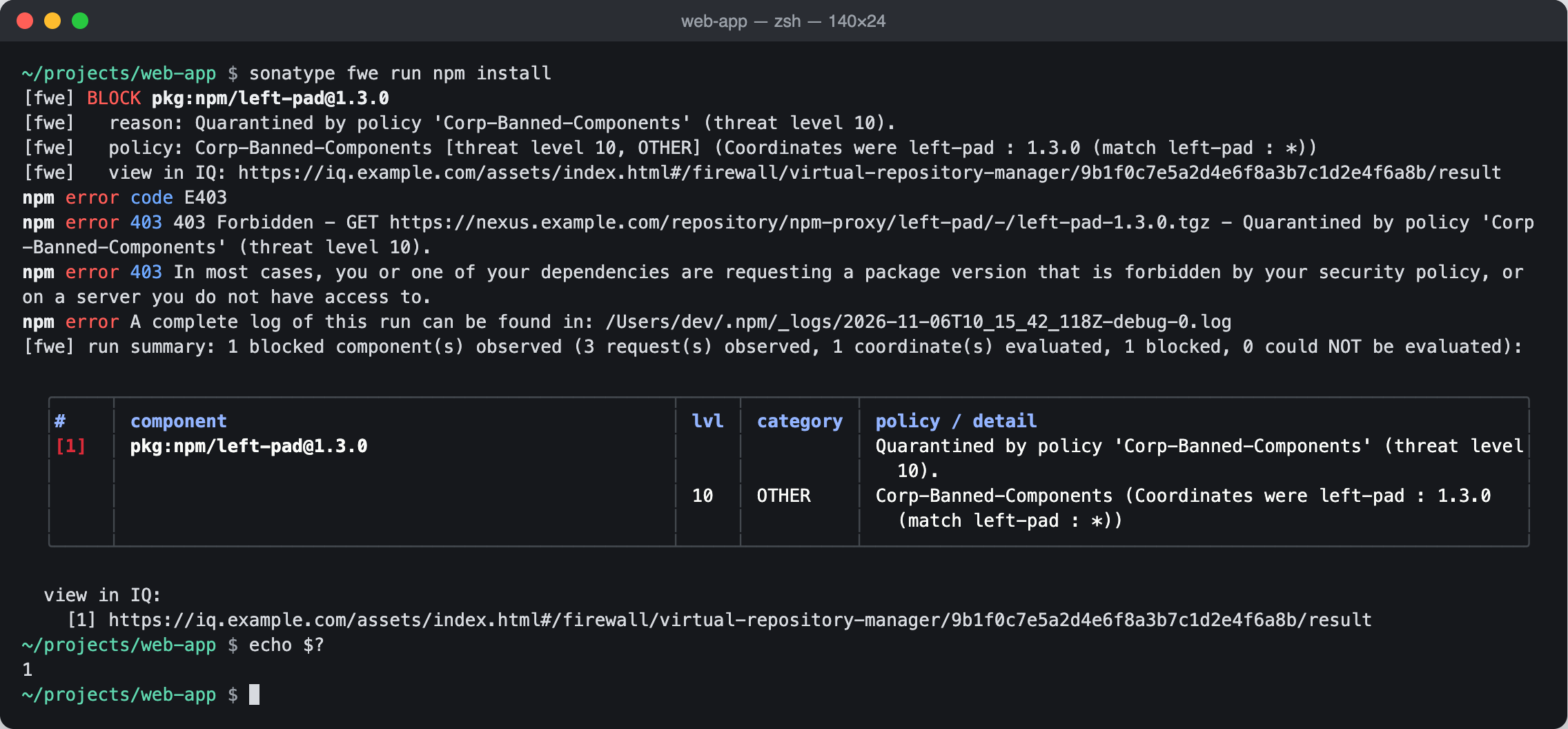
When a component is blocked, the terminal output looks like this. For details about these messages and observe mode, see Evaluation results.
To generate a JSON report, include run and put the output options before the package manager name:
sonatype fwe run --output json --output-file ./report.json npm install
The --output-file option does not produce a report unless you also specify --output json.
Usage
Firewall Enterprise supports the following package manager tools:
Format | Tools | --format value | Run |
|---|---|---|---|
Maven |
|
|
|
npm |
|
|
|
PyPI |
|
|
|
NuGet |
|
|
|
Note
For certificate requirements, including the macOS dotnet setup, see CA and trust.
Configuration reference
Set these Firewall Enterprise settings in a configuration file with sonatype config set. They do not have environment-variable equivalents.
Setting | Required | Description |
|---|---|---|
| Yes | IQ Server base URL. Use |
| Yes | IQ user name. |
| Yes, for evaluation | Policy Gateway name registered in IQ for your Nexus Repository instance. |
| Yes, unless a Nexus Repository proxy URL supplies the ID | Repository ID for a package format. Use |
| No | Use |
These are the supported fwe.* settings. There are no FWE settings for timeouts, proxies, or certificates.
Block mode and observe mode
Block mode is the default. Firewall Enterprise enforces your policies. When IQ Server reports that a component violates policy, the download is denied and the package manager fails. If IQ Server cannot evaluate a component, for example because it cannot be reached, the credential is wrong, or a setting is missing, the download is denied too.
Observe mode reports findings without blocking downloads. For a component that block mode would deny, the CLI still prints the same BLOCK message and summary; read this as “would be blocked.” If IQ Server cannot be reached, the build is not affected and the CLI prints a could not evaluate line instead.
Set the mode for every run of the profile. There is no per-command mode option, and the output does not identify the active mode.
sonatype config set fwe.mode observe
sonatype config set fwe.mode block
Result | Block mode | Observe mode |
|---|---|---|
Component violates policy | Download is denied; the package manager fails. | Download continues; the CLI reports |
IQ Server cannot evaluate the component | Download is denied. | Build continues; the CLI reports |
Exit code | The package manager’s failure code is returned when a download is denied. The CLI returns | The package manager’s exit code is returned, normally |
JSON report | Read | Read |
Evaluation results
While sonatype fwe run runs your package manager, Firewall Enterprise prints messages to standard error. Each line starts with [fwe]; the package manager’s normal output is unchanged. In a colour terminal at least 80 columns wide, the summary is displayed as a table. In CI, a log file, or a narrow terminal, it is printed as plain lines.
A run with no policy violations ends with a summary like this:
[fwe] run summary: no blocked components observed (4 request(s) observed, 1 coordinate(s) evaluated, 0 blocked, 0 could NOT be evaluated).
The counts show requests sent through the local proxy, components evaluated, components that violated policy, and components IQ Server could not evaluate. A coordinate is one component and version.
When a component violates policy, the CLI prints a BLOCK message and the package manager reports its own error. For example:
[fwe] BLOCK pkg:npm/[email protected]
[fwe]   reason: Quarantined by policy 'Banned-Components' (threat level 10).
[fwe]   policy: Banned-Components [threat level 10, OTHER]
[fwe]   view in IQ: <findings URL, when provided by IQ Server>
npm ERR! code E403
[fwe] run summary: 1 blocked component(s) observed (4 request(s) observed, 1 coordinate(s) evaluated, 1 blocked, 0 could NOT be evaluated):
Package managers report blocked downloads differently. npm reports E403; Maven, Gradle, pip, and uv report HTTP 403; and dotnet reports HTTP 409.
The view in IQ line appears only when IQ Server provides a findings link. In observe mode, the CLI still prints BLOCK and the summary, but nothing is blocked by the CLI; read the message as “would be blocked.” The package manager usually succeeds. For example:
[fwe] BLOCK pkg:npm/[email protected]
[fwe] run summary: 1 blocked component(s) observed (4 request(s) observed, 1 coordinate(s) evaluated, 1 blocked, 0 could NOT be evaluated):
See Block mode and observe mode.
Use the summary to distinguish a clean evaluation from a run where nothing was checked:
Summary text | Meaning | What to do |
|---|---|---|
| Downloaded components were evaluated and none violated policy. In observe mode, check that no components could not be evaluated. | Review the remaining counts. |
| Components violated policy. In block mode, their downloads were denied. | Replace the component or ask your IQ administrator about the policy. |
| In block mode, IQ Server could not evaluate the components, so the downloads were denied. | Run |
| No request reached the proxy, often because packages were already cached. This is not a clean result. | Use a clean package cache and run again. |
| Downloads happened, but none could be identified for evaluation. In block mode, the command exits with code | Contact Support with a diagnostic bundle. |
| The command is not a supported package manager and was not checked. | Use a supported package manager. |
In a JSON report, status can be ok even when a component was blocked. For CI checks, use the blocked field or the process exit code.
Field | Meaning |
|---|---|
|
|
|
|
| Number of components for which evaluation was attempted. A value of 0 means none reached IQ Server. |
| Downloads that could not be identified as a component. |
| Policy violations, including the component URL, reason, findings link when available, and policy details. |
| Warnings about package-manager options that bypass the local proxy. |
The report does not include the active mode, components IQ Server could not evaluate, or the package manager’s exit code. Use the process exit code for those details.
CI: To write a JSON report, include the explicit run command and put the output options before the package manager name:
sonatype fwe run --output json --output-file ./report.json npm install
The package manager’s exit code is returned when it starts. The CLI can also return 4 or 127 before it starts, or 5 when downloads reach the proxy but none can be identified. See Exit codes.
Unsupported tools: Tools such as python -m pip, pnpm, yarn, and npx run unchanged and are not checked. The CLI prints NOTHING WAS EVALUATED OR ENFORCED to standard error. These tools return their own exit code, normally 0.
Using FWE in CI/CD
sonatype setup requires a terminal. In Linux and container agents, configure the fwe.* settings and provide the credential through SONATYPE_CLI_FWE_TOKEN from your CI secret store. The Authentication section has a configuration example.
Use the explicit run command to write a JSON report:
sonatype --output json fwe run --output-file ./report.json npm ci
In block mode, let the pipeline fail on a non-zero exit code. In observe mode, check blocked in the JSON report because the package manager can succeed when a component violates policy. Start from a clean package cache; cached packages are not evaluated.
Known limitations
The CLI does not support chaining through an upstream HTTP proxy. If your environment requires a corporate egress proxy to reach the registry, the wrapped package manager cannot use the CLI through that proxy.
Only downloaded package files are evaluated. Packages already in the package manager’s local cache are not checked; use a clean cache when you need a complete evaluation.
For IQ administrators
Provide users with the IQ Server URL, the username and password or user token they should use, and the Policy Gateway name registered in IQ for their Nexus Repository instance. Users also need the repository ID for each package format unless their package manager downloads through a Nexus Repository proxy URL that includes the repository name.
Exit codes
fwe run does not use a dedicated exit code for a blocked component. It returns the package manager’s exit code, which can differ by tool. For example, npm returns 1 and uv returns 2 when a package is blocked. These are package manager exit codes and should not be confused with Sonatype IQ CLI exit codes.
Code | Meaning |
|---|---|
| The package manager succeeded. |
| The command failed. For |
| Usage error, such as an unknown command or option. |
| Configuration, credential, or authentication problem before the package manager starts. Run |
| Block mode only: downloads reached the CLI, but none could be identified, so no policy was enforced. |
| The package manager could not be found or started. |
| The run was interrupted with Ctrl-C ( |
Troubleshooting
Run the diagnostic checks to identify issues and view suggested remediation:
sonatype doctor
Create a diagnostic archive to include with your Support case. The archive removes credentials but still includes the IQ Server URL, username, and local file paths. Review it before sharing:
sonatype diagnostic-bundle --output-file ./sonatype-bundle.zip
For more detailed troubleshooting, enable verbose logging, save the log to a file, and run a package manager command:
sonatype --verbose --log-file ./sonatype.log fwe run npm install
Exit code 4 indicates a configuration, credential, or authentication problem; run sonatype doctor. Exit code 127 means the tool could not be found or started.
When a component is blocked, the CLI prints a [fwe] BLOCK banner with the component, policy, and threat level. It includes a link to view the result in IQ Server when IQ Server provides one.