Browsing Repositories
Use Browse in the left navigation to find repositories and explore their contents. Browse is available for supported repository formats and repository groups. To access the Browse page, a user needs the nx-repository-view privilege for the repository.
Browse Repositories
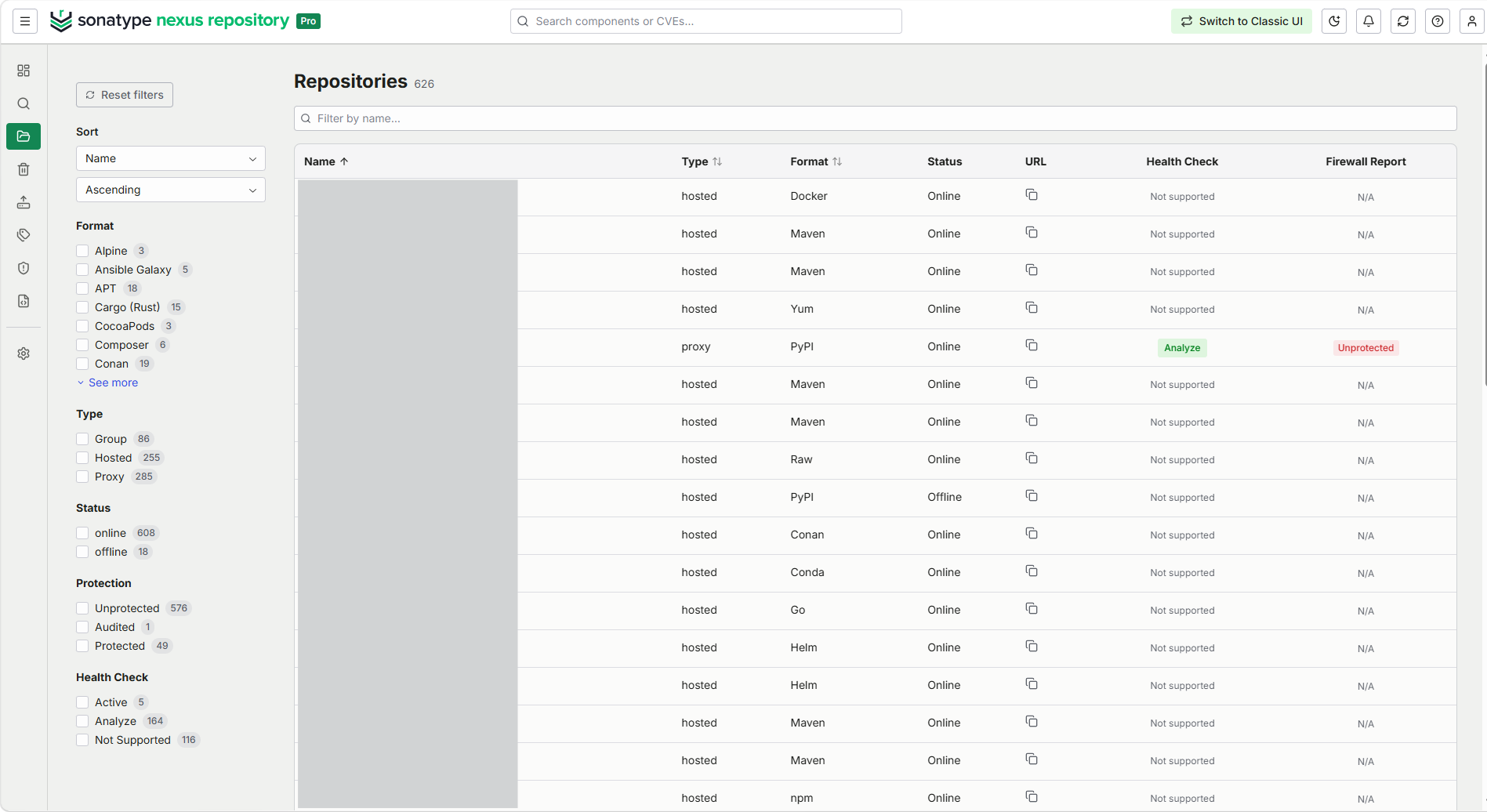
The Browse page lists the repositories that you can access. Use Filter by name to find a repository, or use the filters to narrow the list by format, type, status, protection, or health check. Available filter values and their counts reflect the repositories in your instance. Select See more to show additional repository formats, and select Reset filters to clear all active filters.
Use the Sort controls to order the list by name, type, or format in ascending or descending order. You can also select a column heading for Name, Type or Format to change the sort order. Use the pagination controls to change the number of repositories shown, move between pages, or jump directly to a page.
The repository list includes the following fields:
Name: The repository name. Select it to open the repository in the content browser.
Type: The repository type, such as hosted, proxy, or group.
Format: The repository format, such as Maven, npm, Docker, or PyPI.
Status: Whether the repository is online or offline.
URL: The repository URL. Select Copy URL to copy it.
Health Check: The repository health-check state. Where health checks are supported, you can select Analyze; unsupported formats are identified as not supported.
Firewall Report: The repository protection status. For supported proxy repositories, select the status to view its Firewall report. Repositories that are not proxy repositories display N/A; formats that do not support this capability display Not supported.
Browse Repository Content
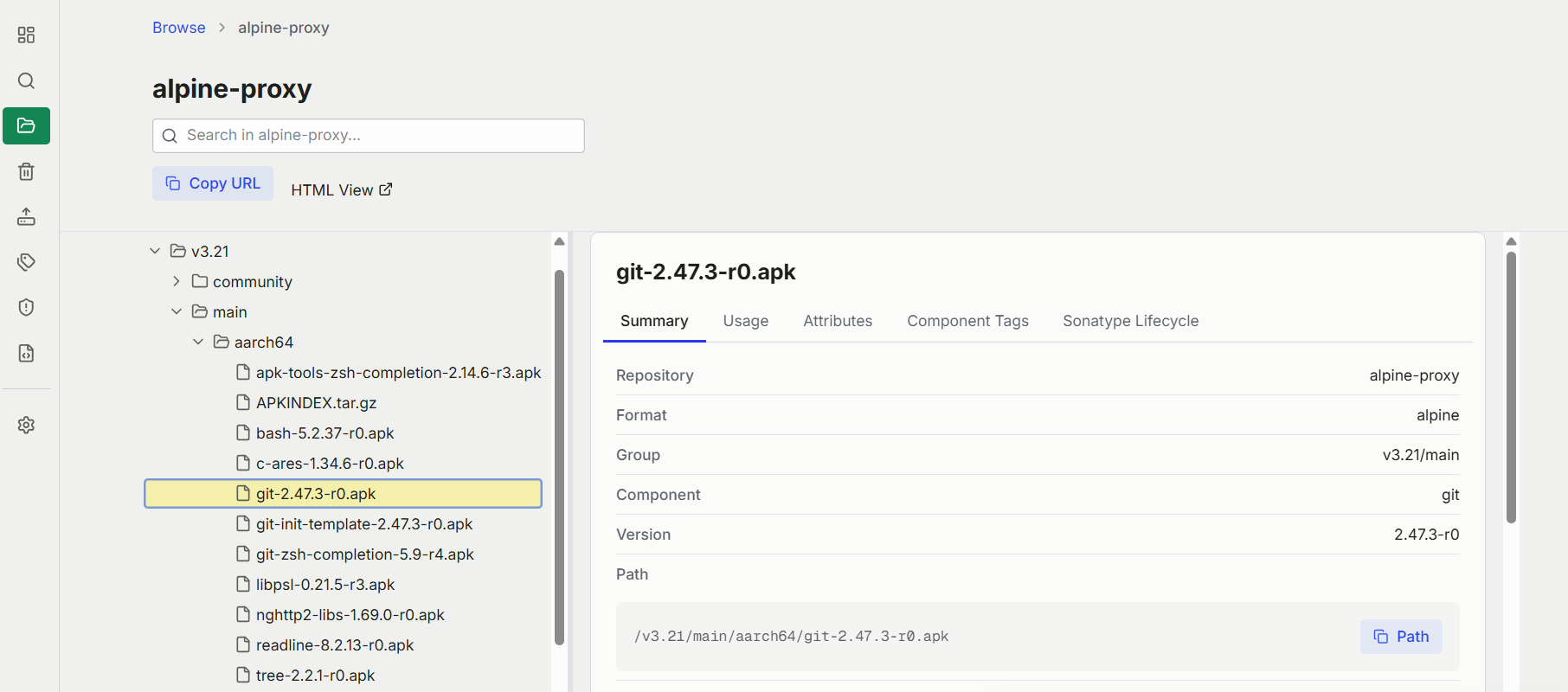
Select a repository from the repository list to open its content browser. The browser provides a searchable tree of the repository contents. Use the search bar to filter the tree, expand folders to navigate the hierarchy, and select an item to view its details in the pane on the right.
The repository page also provides Copy URL and HTML View. Copy URL copies the repository URL. HTML View opens a simple HTML representation of the selected repository.
Note
The Browse UI shows a maximum of 10,000 components at each level to maintain performance.
Information View
When selecting a component or asset the information view appears on the right. The information in this view is the same as the asset and component information views for search but laid out as a series of scrolling panels instead of separate tabs. Additionally, in Sonatype Nexus Repository Pro, there will also be a scrolling panel named Component Tags that will present tags information in the same manner as when viewing tag information in the search results view.
Note
When you browse a Docker repository and select an image tag, the Sonatype Lifecycle Component panel might display the message Vulnerability data is not available for this component. Unsupported format: docker. This is expected behaviour. Docker images are collections of many components rather than a single component, so they do not fit the single-component view used by this panel. The panel is also designed to evaluate components in the context of a Lifecycle application, which is not available on Firewall-only IQ Server licenses, even though the panel can still appear in the Browse view.
When you browse a Pub repository, the Sonatype Lifecycle Component panel does not currently display vulnerability data for Pub assets.
Deleted entities do not appear in standard Browse results. If you cannot find a repository, component, or asset that was recently deleted, check Trash on the left navigation. Restored entities return to the appropriate Browse view after restore. For more details. see Trash.
HTML View
To view and browse a repository and its contents through a simple HTML view, select the HTML View link at the top of the repository content browser.
This opens a simple HTML view of the selected repository. Its corresponding web service endpoint (URL) is available in the address bar.
Security Details
In the event you do not want to give your users nx-repository-view-* permission to browse, there are several options available.
Readgives the ability to access the contents of the repository via client tools, REST, curl and the like. It does not give any UI permissions (e.g. you cannot see the Browse left nav item with just this permission).Browsegives the ability to access the UI Browse feature via the left navigation and the see details of contents and download as described above. This permission is also used in search as well.Addgives the ability to send a POST request to upload content. This does not provide access through the UI.Editgives the ability to send a PUT request to upload content. This does not provide access through the UI.Deletegives the ability to delete content from repositories, but adding and editing creation is not allowed. Note, this does not give the ability to see the contents, soReadorBrowsewill be needed in addition, depending on the delete method being used.
The stars in nx-repository-view-*-*-* represent format, repository, and permissions, * being inclusive of all values.