Azure Blob Store
You must create the Azure storage account in Azure before using Nexus Repository to create an Azure blob store. The Azure storage container name must be a valid DNS name that follows the rules stated in the Microsoft documentation.
Below are the recommended storage account settings:
Location: the location hosting Nexus Repository
Performance: Standard general-purpose v2 or Premium block blobs
Account kind: StorageV2 if using Standard general-purpose v2 or BlockBlobStorage if using Premium block blobs
Replication: Any
When creating a new Azure blob store, Nexus Repository automatically creates an Azure container when one does not exist.
Changing the Blob Store Server
If you need to change the server that is contacted for Azure blob storage from "blob.core.windows.net" to something else, edit the existing <data-dir>/etc/nexus.properties file or set a Java system property as demonstrated below:
nexus.azure.server=<your.desired.blob.storage.server>
Restart the Nexus Repository for the change to take effect.
Accessing the Azure Storage Account
There are three methods of gaining access to the Azure storage account from Nexus Repository:
Use a secret access key supplied by the Azure storage account.
If you're running Nexus Repository on an Azure VM, you can use System Managed Identity access.
Use environment variables.
System Managed Identity Access
System Managed Identity allows Azure to manage access via roles assigned to the VM in which you are running Nexus Repository. See the Microsoft documentation for details.
To properly use the System Managed Identity, the Azure VM will need the following roles assigned to the Azure storage container:
Storage Account Contributor
Storage Blob Data Contributor
Warning
For versions earlier than 3.96.0, Nexus Repository does not validate the roles before storing the configuration. When not properly granted to the VM, you must delete the blob store and then re-add it after the roles have been set up in the Azure storage instance.
Environment Variables
There are three environment variables for Azure blob stores:
AZURE_CLIENT_SECRET
AZURE_CLIENT_ID
AZURE_TENANT_ID
Register an Azure AD application and provide access to the blob storage.
Following Microsoft's documentation, complete the following steps:
Create an application.
Grant permission to Azure storage.
Create a Client Secret.
Copy the secret value to use as
AZURE_CLIENT_SECRET.Retrieve the environment variables from the app registration overview screen:
Directory (tenant) ID - the value for
AZURE_TENANT_IDApplication (client) ID - the value for
AZURE_CLIENT_ID
You must then navigate to the storage container and grant the Storage Blob Data Contributor role to the application:
Select Storage Accounts and then the storage account to which you want to grant access.
Select Access Control (IAM); then, add a role assignment.
Select Storage Blob Data Contributor.
Select Next and then Add Member.
Search for your application and add it as a member.
Now, set the environment variables in the terminal before launching the Nexus Repository.
Optimizing Performance
For optimum performance, you'll want to take the following steps:
Run Nexus Repository on Azure on virtual machines
Ensure that the Azure connection is using the location where Nexus Repository is being run
The chunk size when uploading to Azure can be adjusted by setting the property nexus.azure.blocksize in the nexus.properties file (e.g., nexus.azure.blocksize=1000000). By default, this is set to 5242880 bytes (5MB). You can tune this for optimal performance on your network.
Direct Download (SAS URLs)
Direct Download (SAS URLs) allows eligible binary downloads to go directly from Azure Blob Storage to the requesting client. This reduces outbound bandwidth and download-related resource use on the Nexus Repository host. Note that this behaviour is confined to downloads alone and the uploads always go through Nexus Repository
Direct Download is available only in Nexus Repository Pro versions. In versions earlier to 3.96.0, Azure-backed downloads continue to stream through the Nexus Repository server. Nexus Repository continues to authenticate and authorize the original request before issuing a redirect.
Requirements
Before enabling Direct Download, verify the following requirements:
You are using a self-hosted Nexus Repository Pro 3.96.0 or later instance.
The repository uses an Azure blob store.
Downloading clients can connect directly to the Azure Blob Storage endpoint returned in the redirect.
The Azure identity has the permissions required for the selected authentication method.
Direct Download is configured separately for each Azure blob store. There is no global Direct Download setting.
Azure Authentication And Permission Requirements
The method Nexus Repository uses to create the SAS URL depends on the Azure blob store authentication method.
Authentication Method | SAS Type | Additional Requirement |
|---|---|---|
Account Key | Service SAS signed with the configured storage account key | No additional Azure permission is required. |
Managed Identity (System) | User delegation SAS | The managed identity must be able to request a user delegation key. |
Use Environment Variables | User delegation SAS | The Microsoft Entra service principal must be able to request a user delegation key. |
For Managed Identity and Environment Variable authentication, the Azure identity requires the Microsoft.Storage/storageAccounts/blobServices/generateUserDelegationKey/action permission. This can be either a Storage Blob Data role (Reader, Contributor, or Owner) or Storage Blob Delegator permission.
Enable Direct Download
Use this procedure to enable Direct Download for an Azure blob store.
Nexus One UI
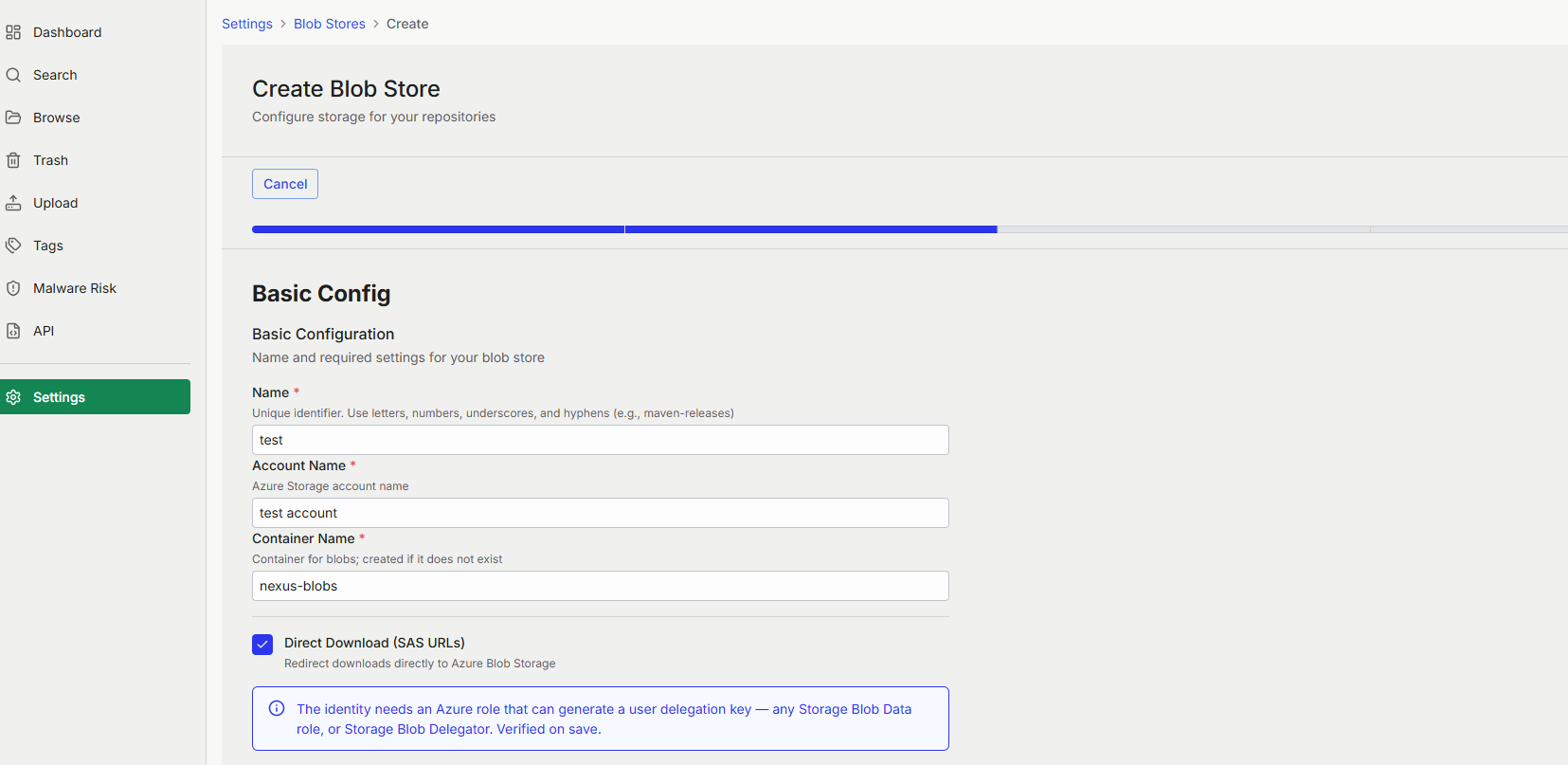
In the Nexus Repository user interface, select Settings.
Select Blob Stores.
Create an Azure blob store or select your existing Azure blob store.
Enable the Direct Download (SAS URLs) checkbox, select Redirect downloads directly to Azure Blob Storage.
Select Save.
Classic UI
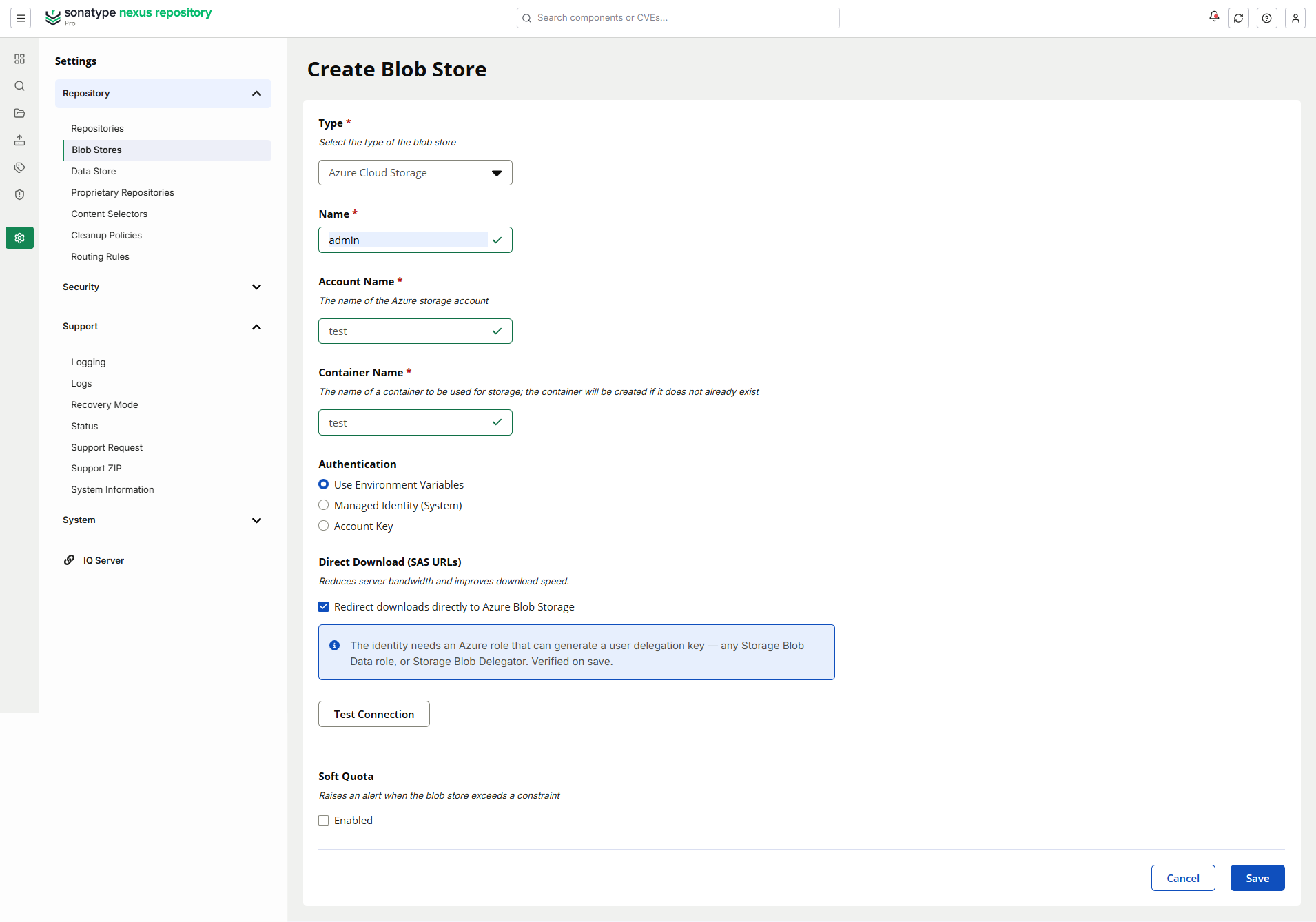
In the Nexus Repository user interface, select Settings.
Select Repository and then Blob Stores.
Create an Azure blob store or select your existing Azure blob store.
In Direct Download (SAS URLs), select Redirect downloads directly to Azure Blob Storage.
Select Save.
When the blob store uses Account Key authentication, Nexus Repository signs SAS URLs with the configured account key. No additional Azure permission validation occurs when you save.
When the blob store uses Managed Identity or Environment Variable authentication, Nexus Repository verifies that the configured identity can request a user delegation key. If Azure rejects the request, Nexus Repository does not save the Direct Download configuration.
Download And Fallback Behavior
The following table describes how Direct Download handles different requests and conditions:
Request Or Condition | Behavior |
|---|---|
Eligible binary | Nexus Repository returns HTTP |
| Nexus Repository returns the metadata response without redirecting the request to Azure. |
Upload request | The upload continues through Nexus Repository. |
Direct Download disabled | The download continues through Nexus Repository. |
SAS URL generation fails | Nexus Repository falls back to the normal proxied-download path. |
Azure permission removed after enablement | Nexus Repository falls back to the normal proxied-download path after it can no longer obtain a valid delegation key. |
Microsoft Entra ID or Azure temporarily unavailable | Nexus Repository uses a valid cached delegation key when one is available. Otherwise, it falls back to the normal proxied-download path. |
The generated SAS URL is:
Restricted to read access.
Restricted to one Azure blob.
Available through HTTPS only.
Valid for a short period.
For Managed Identity and Environment Variable authentication, Nexus Repository holds the user delegation key in memory and refreshes it automatically. Nexus Repository does not store the delegation key in its database.
Monitor Direct Download
Use the Azure Direct Download (SAS URLs) status check to determine whether Direct Download is operating normally.
You can view the check under Settings → Support → Status or retrieve it from the following endpoint:
GET /service/rest/v1/status/check
The check can report the following states:
Status Message | Meaning |
|---|---|
| The instance does not have an Azure blob store. |
| Azure blob stores exist, but Direct Download is disabled on all of them. |
| Direct Download is enabled and SAS URL generation is operating normally. |
| Repeated SAS URL generation failures have occurred for the listed blob store. |
The check returns to a healthy state automatically after Nexus Repository successfully generates an SAS URL again.
Review the Nexus Repository application log for the detailed failure reason. The status check intentionally identifies only the affected blob store names.
Configure Direct Download With The REST API
The following endpoints manage Azure blob stores:
Method | Endpoint | Required Permission | Description |
|---|---|---|---|
|
|
| Creates an Azure blob store. A successful request returns |
|
|
| Updates an Azure blob store. A successful request returns |
|
|
| Retrieves an Azure blob store configuration. |
The following Direct Download errors can occur:
Status Code | Description |
|---|---|
| The request attempts to enable a feature that is unavailable for the running Nexus Repository edition. |
| Nexus Repository could not validate that the configured Azure identity can request a user delegation key. |
See the in-product API reference under Settings → System → API for complete Azure blob store request and response schemas.