Searching for Components
Searching for components finds information about specific artifacts in the repository. Use this for research into available components, to integrate with your build tool migrations, to download packages, and for quality assurance.
Changes to Search in 3.88.0
In version 3.88.0, Sonatype Nexus Repository moved fully to SQL search and removed Elasticsearch. With this change, search behavior is more precise, and some previously supported wildcard patterns no longer work. For details, see our SQL Search documentation.
Searching Overview
Component search is available in the search bar at the top and the Search button on the side navigation. The following permissions are required to use the search bar in the UI and find components from specific repositories:
nx-search-read
repository-view (per repository)
After entering a search, the first 300 results are visible in the component list. Selecting a component in the list changes to a display of the component information.
Note that result ordering may depend on the configured database; relevance ranking requires using a PostgreSQL database.
More Criteria Drop-down
Use the more criteria dropdown to add additional search criteria to your query. This criteria includes specific metadata fields for the repository as well as format-specific criteria.
Selecting specific criteria adds a new search field for you to enter into.
Criteria may be removed by selecting the minus icon within the criteria input box.
Criteria are not used when nothing is specified in the specific criteria.
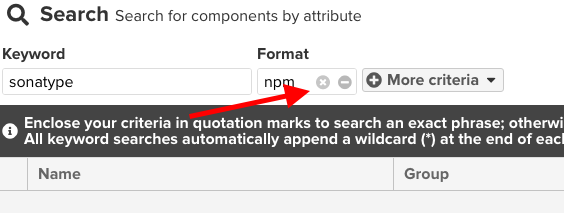
Keyword search query string
Tokenization is the process of splitting text into smaller parts, or 'tokens', during indexing and querying. Component metadata and coordinates are tokenized in the Nexus Repository database so the search provides better matching.
Hyphenated keywords When using keyword searches with a hyphenated component name such as
aether-util, the query is tokenized toaetherandutil, providing results for both keywords. The tokens of your query string must exactly match a searchable field.Tokenization does not include fuzzy or stemmed matching. See SQL Search for details.
Using double quotes to narrow results To match exactly
aether-util, use double quotes in the search term to require the full string for a match."aether-util"
Wildcards in searches Use the asterisk (
*) character as a wildcard to broaden component search results.Trailing wildcards are supported. Place the wildcard at the end of your search term. By default, users must enter at least 3 characters before a wildcard. For example
aeth*finds aether or aether-util.By default, leading and embedded wildcards are not supported. Searches like
*mavenorja*yare not supported.When
nexus.search.multi.wildcard.regex.enabledis enabled, supported component search fields can use positional wildcard patterns. Positional wildcard patterns preserve the order of the search terms.For example,
commons*langmatchescommons-lang, but does not matchlang-commons. Supported fields include group, namespace, organization, name, artifact ID, package name, and version. Positional wildcard patterns are not supported for keyword search or format-specific fields, such as Maven base version, Docker tags, and npm scope. For more information, see SQL Search.New in 3.95 The minimum number of characters required before a trailing wildcard is configurable. See Configure Minimum Prefix Length for Trailing Wildcards.
Configure Minimum Prefix Length for Trailing Wildcards
You can configure the minimum number of characters required before a trailing wildcard through the nexus.search.wildcard.minPrefixLength property.
By default, SQL search requires at least three characters before a trailing wildcard (*). You can configure the nexus.search.wildcard.minPrefixLength property in the nexus.properties file located in the data directory at $data-dir/etc/nexus.properties. The property accepts integer values within a validated range of 1 to 100. When the property is not specified, Nexus Repository uses the default value of 3 characters. Restart your Nexus Repository instance after you change the configuration.
Example:
nexus.search.wildcard.minPrefixLength=1
The above configuration allows searches with a single-character prefix, such as `version=1.*. Note that lower values may match more components, potentially affecting query performance on large repositories.
For HA deployments, every node has its own configuration. Make sure to update the nexus.properties for each node.
Search Fields and Component Attributes
Note
Nexus Repository adopted SQL search from versions 3.88 and later. It introduced format specific behavioural differences. For more details, see SQL Search documentation.
This section explains the different search fields available in Nexus Repository to narrow down the results.
The following are the search fields available for all the repositories:
Keyword
Use a keyword search to search for a string found in any component metadata value.
Format
The format of the repository in which to look for a component.
Repository Name
The name of a repository in which to look for a component.
Group
The namespace of the component; is often the organization that produces it. Some formats use a different name for this criterion such as
orgfor Ivy orgroupIdfor Maven while other formats do not use groups such as theNugetrepository format.Name
The name of a component constitutes its main identifier. Different repository formats use a different name for the concept such as artifactId for Apache Maven and the maven2 repository format.
Version
A component's version identifies the specific point in time at which that component was released. Various tools such as Maven or NuGet use the term
version. Other build systems call this something else (e.g., Apache Ivy usesrev(short for revision)). In most repository formats, version numbers do not need to follow a specific standard and are simply a string. This affects the sort order and can produce unexpected results.Checksum
A checksum value of a component file generated by an MD5, SHA-1, SHA-256, or the SHA-512 algorithm.
Composer Repositories
Only available in licensed Nexus RepositoryTM entitlements. Interested in a free trial? Start here.
Vendor
The responsible group for the package.
Package
The name of the project.
Conan Repositories
Conan Revisions are available for PostgreSQL or H2 databases only
Arch
The hardware architecture the component was built for.
Base Version
Project or library version (e.g., "1.0.0")
baseVersion.strict
Only return the latest revision for a specific base version.
Compiler
The compiler that was used to package the component.
compiler.runtime
The runtime used by the compiler.
compiler.version
The version of the compiler.
Channel
Channel represents an alternative variant of packages for the same library and usually describes the maturity of the package (e.g., "stable" or "testing"). It also can show package revisions.
Common Version criteria for Conan format is a combination of Base Version and Channel, for instance, "1.0.0-stable"
Os
The operating system the package is to run on.
Package ID (PostgreSQL or H2 databases only)
A Conan Package ID is a unique identifier that encodes information about each package's settings, options, and requirements.
Package and Recipe Revisions (PostgreSQL or H2 databases only)
In simplest terms, revisions are versions of versions. The Conan revisions feature allows you to make changes to your artifacts while maintaining a single Conan reference. Every Conan recipe export is associated with a unique ID (i.e., a revision); every recipe change results in a new recipe revision (RREV). Conan calculates a new package revision (PREV) using the package contents' hash whenever you create a new package. Package revisions belong to recipe revisions; the same package ID may have multiple package revisions belonging to a single recipe revision.
See Conan's documentation on package revisions
Docker Repositories
Docker searches support image identifiers and metadata extracted from image manifests and configuration data.
The following criteria are available for Docker repositories:
Image Name: The name of the Docker image. This value is equivalent to the component name in Nexus Repository.
Image Tag: The tag assigned to the Docker image. This value is equivalent to the component version in Nexus Repository.
Layer ID: The unique identifier for a Docker image layer.
Content Digest: The content digest associated with the Docker asset.
OS: The operating system declared by the image, such as
linuxorwindows.Architecture: The processor architecture declared by the image, such as
amd64orarm64.Labels: Image labels extracted from the image configuration. Search for a label by using its
key=valuerepresentation.Author: The author value declared in the image configuration.
Metadata-based criteria only match Docker assets that contain the corresponding extracted metadata. Assets created or cached before metadata persistence was available might not contain these fields. Nexus Repository omits metadata fields that are not available.
Maven Repositories
Group Id
The Maven groupId for a component. Other build systems supporting the Maven repository format call this differently e.g. org for Apache Ivy and group for Gradle and Groovy Grape. Group Id is equivalent to Group.
Artifact Id
The Maven artifactId for a component. Other build systems call this differently e.g. name for Apache Ivy and Gradle, and the module for Groovy Grape. Artifact ID is equivalent to Name.
Classifier
The Maven classifier for a component. Common values are javadoc, sources, or tests.
Base Version
The base version of the component/asset. Typically this is the same value as the version for release components. SNAPSHOT development components use a time-stamped version but the base version uses the SNAPSHOT version e.g. version of 1.0.0-20151001.193253-1 and base version of 1.0.0-SNAPSHOT.
Extension
The extension is used for a specific asset of a component.
NuGet Repositories
ID
The NuGet component identifier is known as Package ID to NuGet users.
Tags
Additional information about a component formatted as space-delimited keywords, chosen by the package author.
p2 Repositories
Plugin Name
The name of a p2 plugin stored
PyPI Repositories
Classifiers
Denote the maturity, intended audience, license, and supported versions the creator wished associated with their component.
Description
The creator provided a long description of the component.
PyPI Keywords
Associated component keywords. Generally used as identifiers to search.
Summary
The creator described the component.
RubyGems Repositories
Platform
The Platform the gem runs on is defined via the gemspec.
Summary
A summary of the gem's description is defined via the gemspec.
Description
A long description of the gem is defined via the gemspec. This field is optional when creating a gem so may be blank.
Yum Repositories
Package Name
The name of the package, this field is the equivalent of Name for Yum.
Architecture
The architecture the package is designed to be run on.
Preconfigured Searches
Preconfigured searches are available when a repository for the format exists in the Nexus Repository and the user has repository-view access to the repository. The format-specific search is available via the format-named menu item in the Search section of the Browse menu.
Each preconfigured search supports adding further criteria.
Keyword Search
The main toolbar includes a Search components text input field. Type your search term and press enter/return and the repository manager performs a search by Keyword.
The same search can be accessed by selecting the Search item in the Browse main menu. The search term can be provided in the Keyword input field in the Search feature view.
Custom Search
A configurable search using the criteria you select is available via the Custom menu item in the Search section of the Browse main menu. Initially, it has no criteria and it allows you to create a search with criteria you add with the More Criteria dropdown.