Configure Firewall Enterprise
Configuring Firewall Enterprise involves the following high-level steps:
In Sonatype Repository Firewall you will create a Policy Gateway for the repository-manager connection.
Then, you will add a proxy repository for each public registry you want to protect.
Firewall Enterprise then generates a URL for each proxy repository, which you give to your repository manager.
Before you start, make sure that you have the required access:
Creating a Policy Gateway requires Edit IQ Elements on the Policy Gateways container.
Adding a proxy repository to an existing Policy Gateway requires Edit IQ Elements on that Policy Gateway.
For Firewall Enterprise Cloud, organizations and identity-provider connections are managed through my.sonatype.com. Firewall Enterprise roles are assigned in the Firewall Enterprise UI under Repos and Policies > Access. For self-hosted IQ Server, users and external authentication sources are managed in IQ Server. See Access Control and Permissions in Sonatype Firewall Enterprise.
Create a Policy Gateway
You should create one Policy Gateway per repository manager connection that requires its own proxy repositories, policies, or access. The name you will give this Policy Gateway will become part of each generated URL.
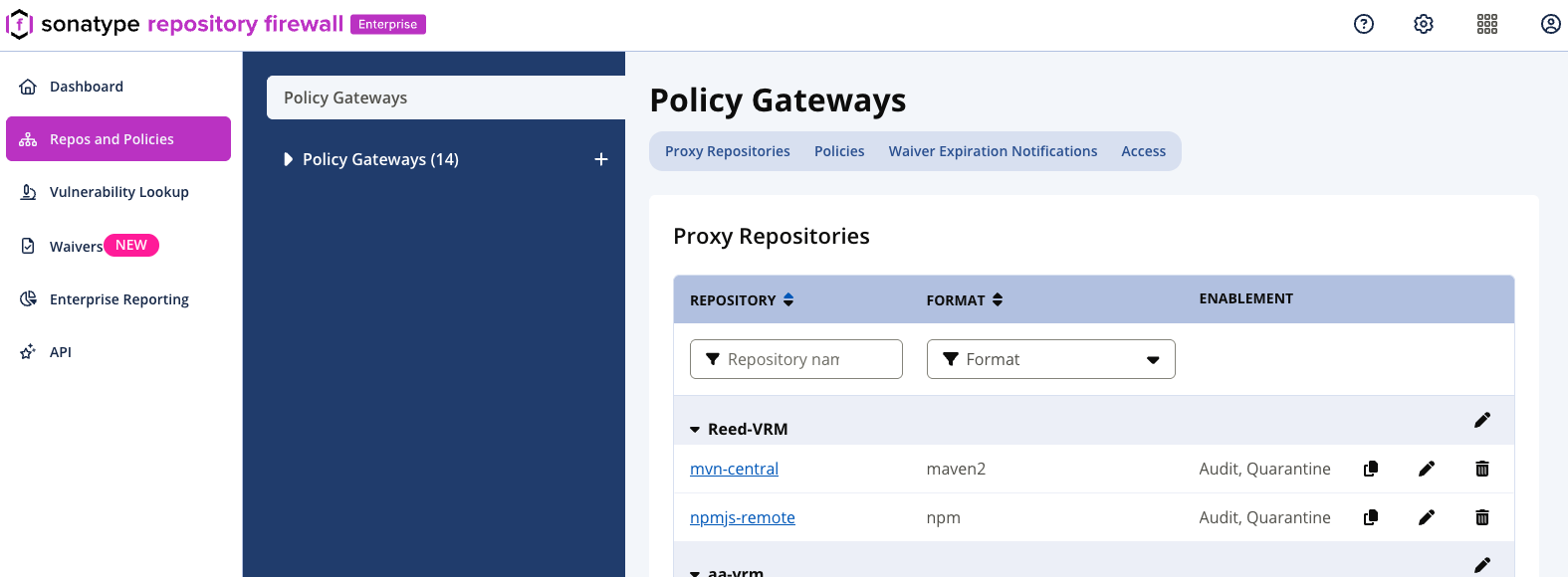 |
To create a Policy Gateway, take the following steps:
Sign in to Firewall Enterprise.
Select Repos and Policies.
Select the Policy Gateways menu option. Then, select the plus sign (+) next to Policy Gateways to add a new Policy Gateway.
In Policy Gateway Name, enter a name to identify the repository-manager connection; then, select Save.
Note
A Policy Gateway name must contain from 1 through 200 characters and can contain only letters, digits, periods (.), underscores (_), hyphens (-), be unique, not be . or .. and not use a UUID-like value that can be interpreted as a Policy Gateway instance ID.
Add a Proxy Repository
Add one proxy repository for each public registry you want your repository manager to reach through Firewall Enterprise. To do so, take the following steps:
Under Repos and Policies > Policy Gateways, select the Policy Gateway to which you wish to add a proxy repository. This will open up a detailed view of that Policy Gateway, including tabs for Policy Gateway Results, Proxy Repositories, Policies, Waiver Expiration Notifications, and Access.
Select the Proxy Repositories tab; then, select Add Proxy Repository.
Enter a Repository Name and choose the Repository Format . The settings fields on the form adjust depending on which format you select. See Format-Specific Settings below.
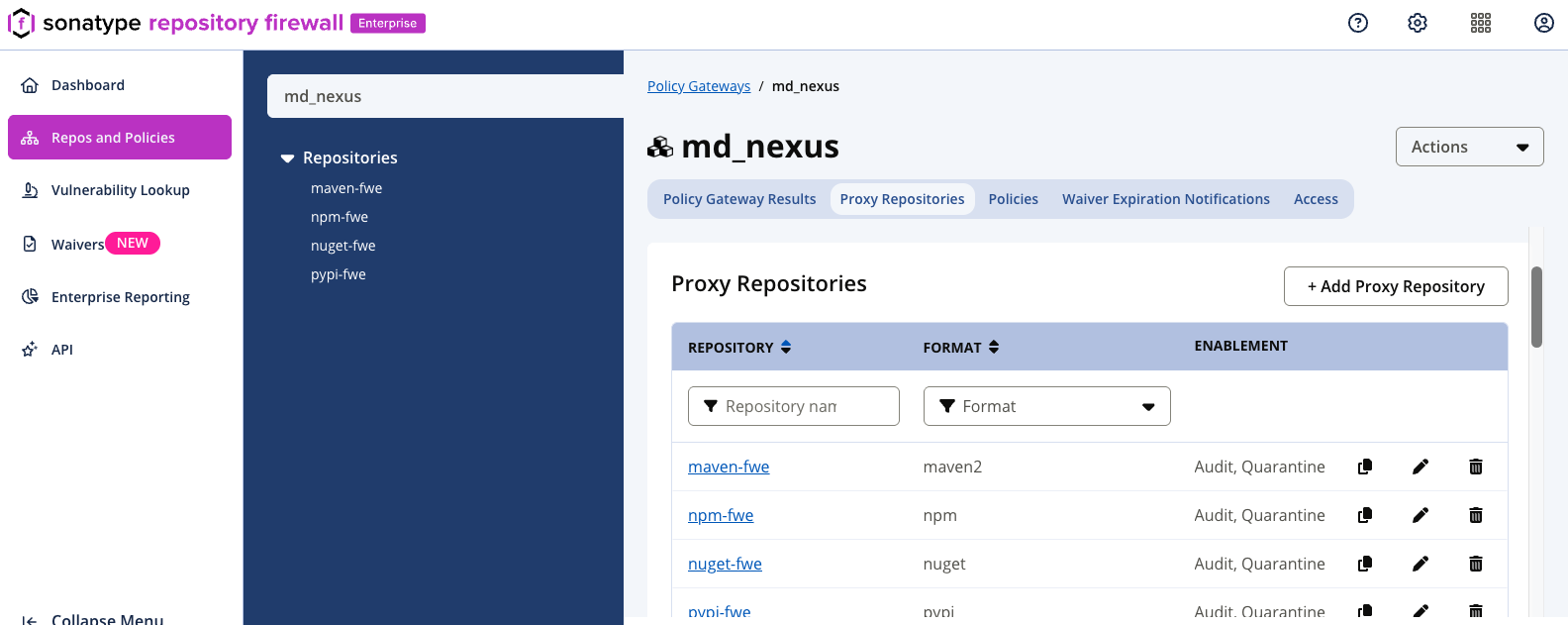
Complete the settings for the format, then select Save.
Note
The repository name and format, and the NuGet protocol version, cannot be changed after the proxy repository is created.
Note
A proxy repository name must contain from 1 through 200 characters and can contain only letters, digits, periods (.), underscores (_), and hyphens (-).
Format-Specific Settings
Format | Settings | Example |
|---|---|---|
Maven | Upstream URL |
|
npm | Upstream URL |
|
PyPI | Upstream URL, Remote index path (optional), Package host URL |
|
NuGet | Protocol version (V2 or V3, V3 by default), Upstream URL |
|
Note
For PyPI, leave Remote Index Path blank if the upstream registry serves its package index from the root path, for example pypi.nvidia.com.
Note
When you save a NuGet V3 proxy repository, Firewall Enterprise retrieves the upstream service index. The proxy repository cannot be saved if the service index cannot be read or does not contain PackageBaseAddress and RegistrationsBaseUrl resources.
Copy the Generated Firewall Enterprise URL
When the proxy repository is created, the Repository Created dialog shows its URL. Select Copy URL.
Use it as the remote URL of the matching proxy repository in your repository manager.
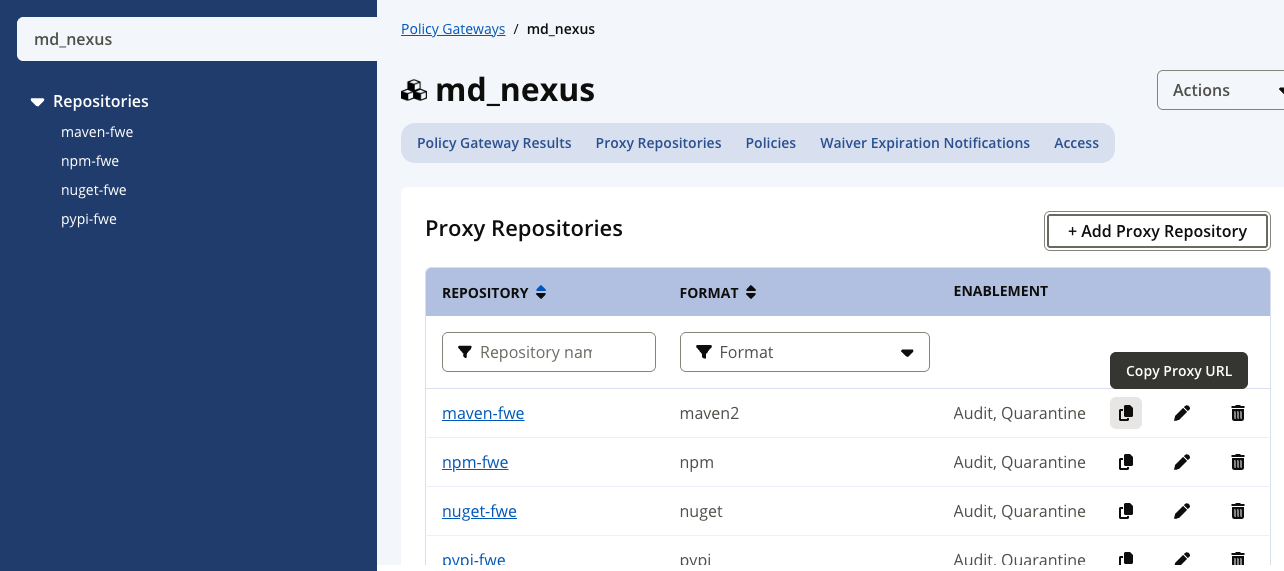
To copy it again later, use Copy Proxy URL icon in the Proxy Repositories table that appears in the Proxy Repositories tab for a given Policy Gateway.
 |
Note
Always use the URL Firewall Enterprise generates; do not build it by hand.
Policies and Access
Firewall Enterprise evaluates the Repository Firewall policies that apply to the Policy Gateway.
A component request is blocked when it violates any applicable policy with a Fail action at the Proxy stage. Warn and No Action allow the request and record the violation.
Policies can be configured at:
The Root Organization.
The Policy Gateways container.
An individual Policy Gateway.
Policies cannot be configured on an individual proxy repository under a Policy Gateway. A proxy repository displays inherited policies as read-only.
For procedures to create policies, configure Proxy-stage actions, override inherited actions, and apply policy changes to existing findings, see Configuring Policies.
Use Access to assign roles. See Access Control and Permissions in Sonatype Firewall Enterprise.
Use Waiver Expiration Notifications to configure waiver notifications.
Note
Waivers, component labels, license overrides and vulnerability status overrides are scoped to the Policy Gateway or above - never to an individual proxy repository. See Configure at the Policy Gateway, not on its proxy repositories.