Using AI Developer
Note
All current self-hosted Sonatype Lifecycle customers are entitled to preview credits for AI Developer. Contact your Sonatype account representative to claim your credits and start bringing trusted open source intelligence and policy-aware guidance into your AI-assisted development workflow.
Note that AI Developer is currently in Preview. During this period, we will support your use of the solution while we finalize the user interface and user experience.
Sonatype AI Developer can be used through the user interface as well as through your configured AI coding assistant.
Tip
Configure your AI assistant's coding rules to always use AI Developer without being prompted as suggested in our connecting your AI coding assistant documentation.
AI Developer User Interface Overview
The AI Developer user interface provides a centralized view of component, vulnerability, and security event information across supported software ecosystems.
The main side navigation allows you to move between Home, Components, Vulnerabilities, Security Events and MCP views. use search, filtering, and sorting controls to narrow results and find relevant security information. Vulnerability results include key details such as CVE identifiers, severity and CVSS scores, affected ecosystems, publication dates, and vulnerability descriptions.
Components View
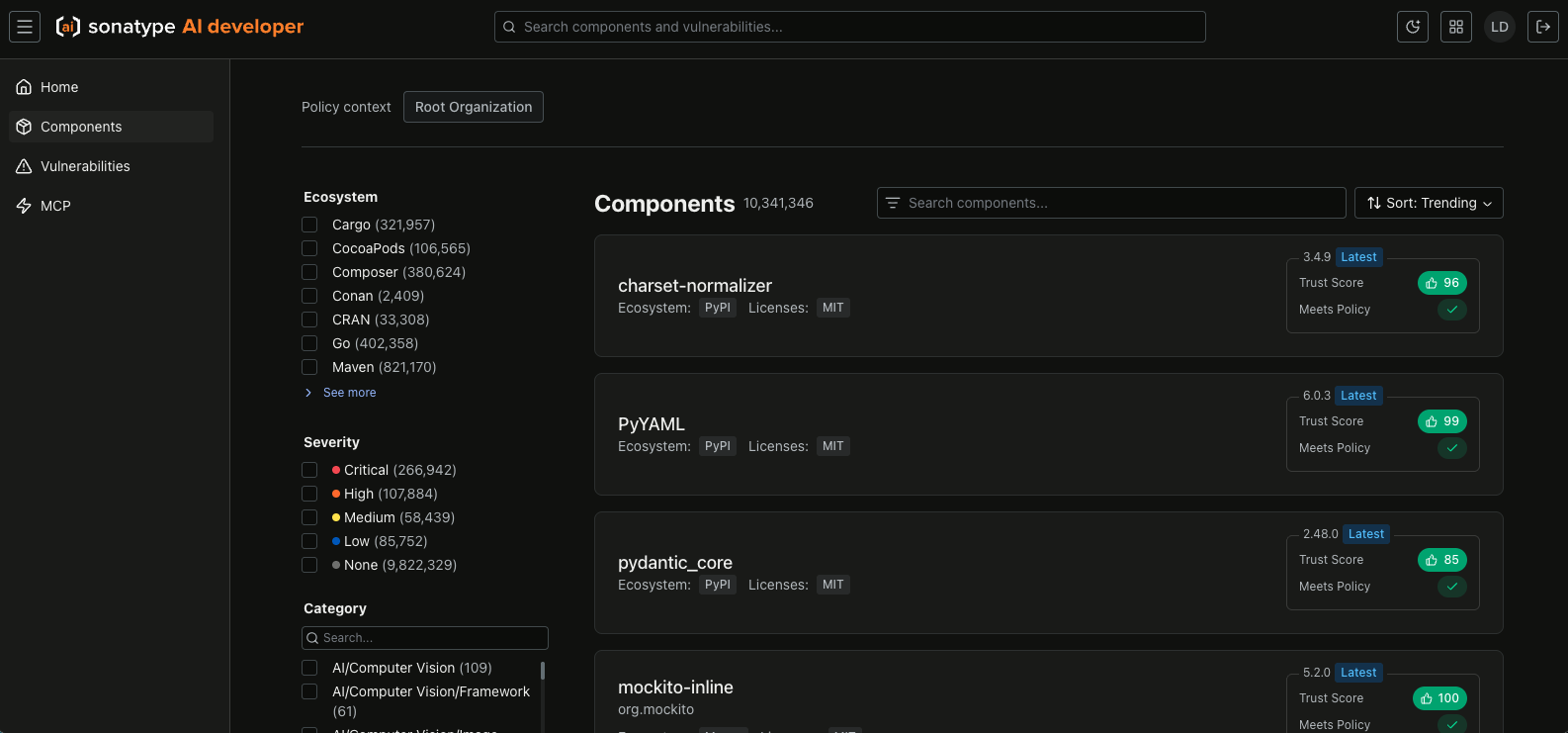
The Components view provides a searchable, filterable inventory of available software components. Use the filters to narrow results by policy context, ecosystem, severity, and category. You can also search for a specific component by name.
Each component entry displays key information such as its ecosystem, license, latest version, trust score, and whether it is policy-compliant, helping you quickly evaluate and compare components.
Policy Compliance
Sonatype AI Developer uses your configured Lifecycle policies to determine policy compliance.
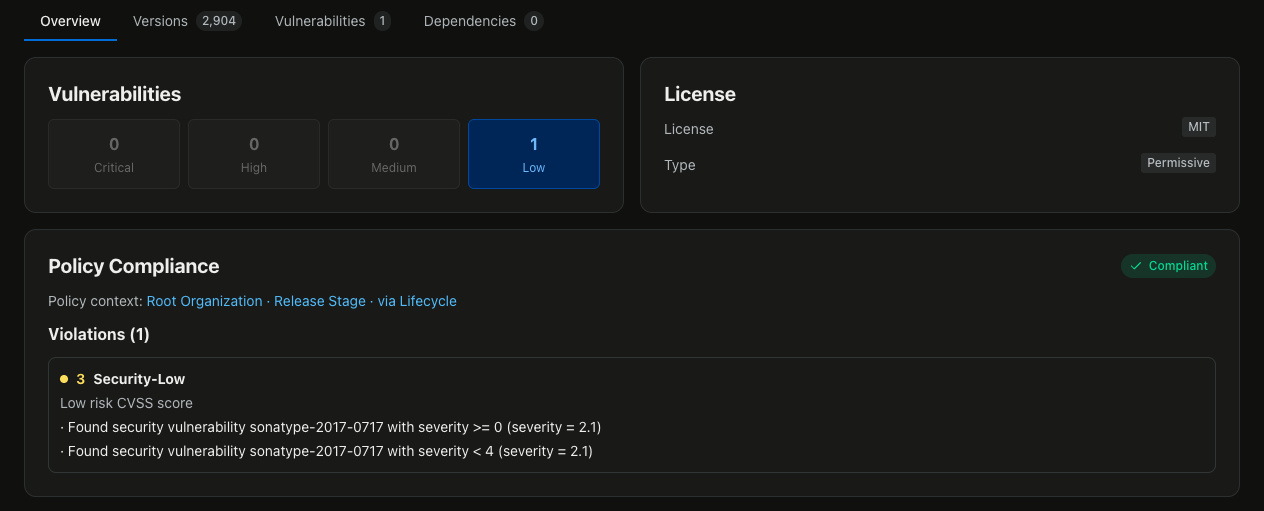
By default, it uses the root organization; you can select the context (i.e., organization or application) to override the default.
See the main Configuring Policies help documentation for more information on policy management.
Vulnerabilities View
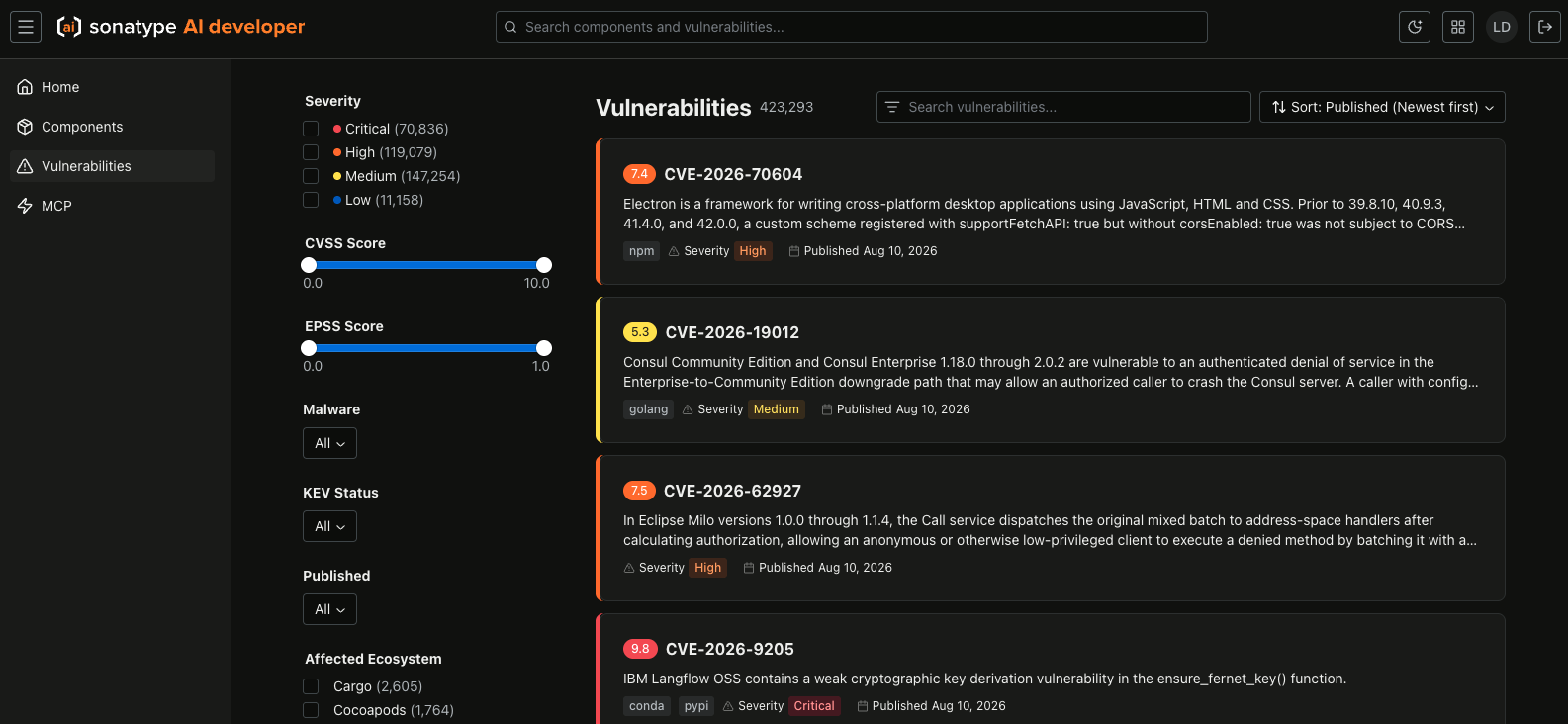
The Vulnerabilities view allows you to search, filter, and sort through known vulnerabilities. Vulnerability results include key details such as CVE identifiers, severity and CVSS scores, affected ecosystems, publication dates, and vulnerability descriptions.
Security Events View
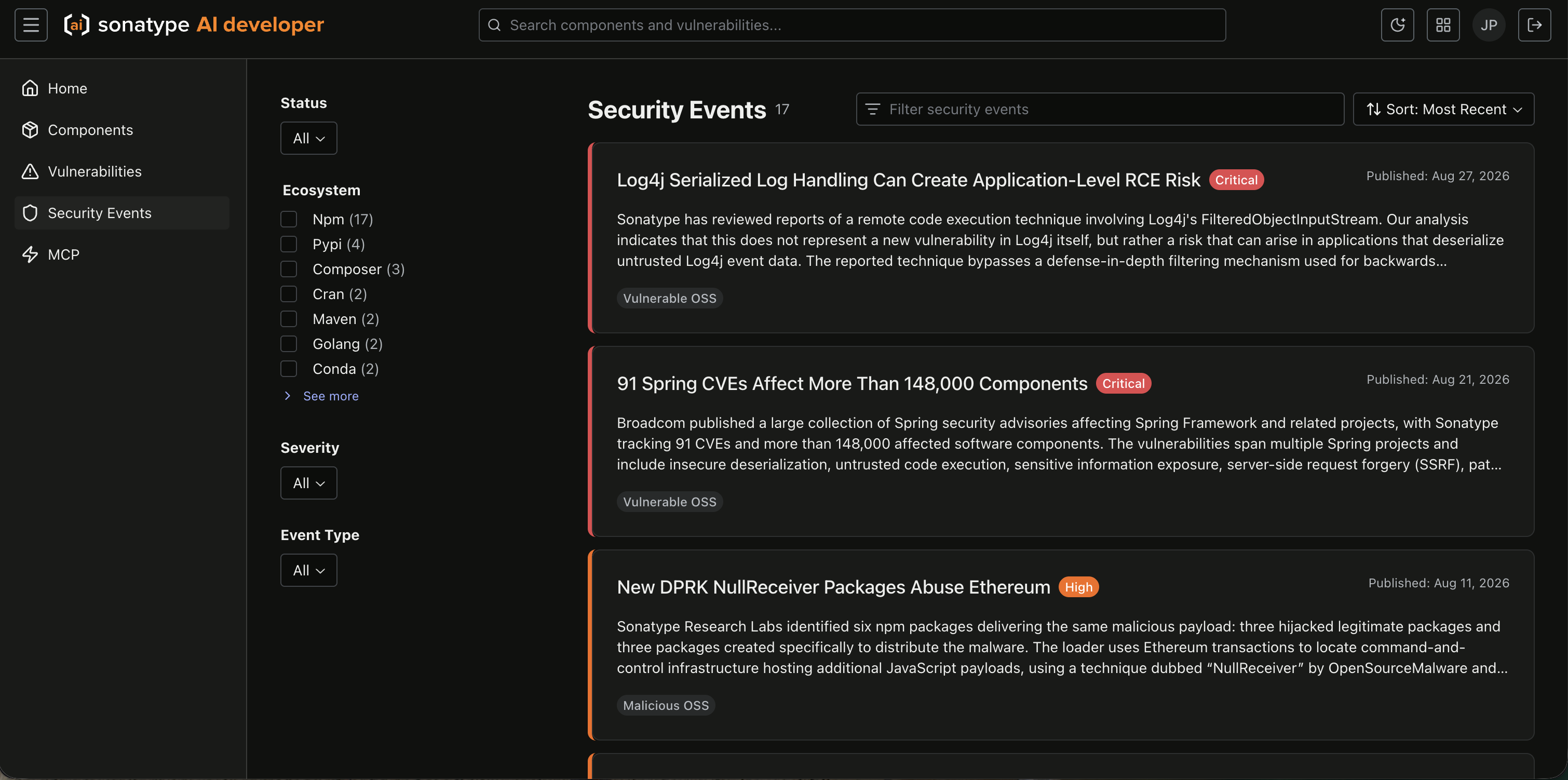
The Security Events view provides a curated list of important open-source security events, including high-severity vulnerabilities, malware campaigns, and other events identified by Sonatype Security Research.
Use the filters to focus on events by known-exploited status, ecosystem, severity, or event type. Use the Filter security events field to find events by title or summary, and use Sort to change the display order.
Each event entry includes its title, severity, threat type, publication date, and a short summary. Select an event to review Sonatype analysis and guidance and, when available, the affected component versions.
See the Using Security Events help documentation for more information on security events.
Sonatype MCP
The MCP section provides detailed information on connecting your AI coding assistant to the Sonatype MCP as described in the Connect an AI Coding Assistant help documentation.
What Can You Do with Sonatype AI Developer?
The sections below go through some of the example tasks you can accomplish using AI Developer.
Investigate a specific component version
AI Developer can help you get more information about a specific version of a component.
From your connected AI assistant
Investigate express version 4.17.1 and summarize the relevant Sonatype findings.
From the user interface
Use the search bar to search for a specific component by name (e.g.,
express).Select the component when it appears in the search results; by default, you will see the latest version.
From that component's detailed view, select the Versions tab.
Select the specific version about which you would like more information.
Check the latest component version
AI Developer can help you quickly identify the latest version of a component.
From your connected AI assistant
What is the latest version of lodash?
From the user interface
Use the search bar to search for a specific component by name (e.g.,
lodash).As the results populate, you will see the latest version of that component displayed in the results preview. You can also select the result to navigate to the detailed view.
Review recommended upgrade options
AI Developer can help you select the best version when upgrading a component.
From your connected AI assistant
Which versions should I consider when upgrading React from version 16.8.0?
From the user interface
Use the search bar to search for a specific component by name (e.g.,
React).Select the search result when it appears; by default, you will see the latest version of that component in its detailed view.
You can use the detailed per-version information in the Versions tab as well as specific vulnerability details in the Vulnerabilities tab to help you select the best version when upgrading that component.