Golden Fixes Dashboard
About the Data
Data Refresh Frequency: Updated daily at around 12:50 UTC. New fix activity can take up to 24 hours to appear.
Displays Data for: All open violations (regardless of the date they were opened) and resolved violations on or after January 1, 2024. For new installations, data will be visible within a week after the first scan.
To view historical data (generated before January 1, 2024) version 188 or higher is required.
Minimum Requirements: Applications must be scanned at least once, after upgrade to version 184. The dashboard currently shows data related to violations and remediations that are discovered after upgrade to version 184.
Overview
The Golden Fixes Dashboard helps you discover the potential impact of adopting golden fixes across your organization. Golden Fixes are validated, policy-aligned pull requests that automatically remediate open violations. This dashboard highlights how many violations could be resolved with Golden Fixes and helps you identify where they can have the greatest impact across your organization.
By providing clear visibility into security improvements that can be achieved with minimal effort, the dashboard enables you to view how many open policy violations could be remediated through golden pull requests. This gives executives, security teams, and development teams actionable insights into low-effort fixes that can significantly improve their security posture.
Use filters like date range, application, threat level, component type, component name and more to focus your view and identify the most impactful opportunities for remediation.
About Golden Fixes
Golden Fixes are validated component versions that resolve security violations without introducing breaking changes. When a component has a golden version available, you will receive the best recommended option to upgrade, which can eliminate vulnerabilities while maintaining application functionality. These fixes are automatically identified by analyzing component direct dependencies and suggesting safe upgrade paths that have been verified as policy-compliant.
Explore Your Golden Fixes Dashboard
Our dynamic dashboard lets you drill into your application’s golden fixes profile with a rich set of filters. Narrow your view by date range, organization, sub orgs, application, application category, component name, component type, stage, policy threat level, policy name, vulnerability, and dependency type.
Date Range: Defaults to last 12 months. Adjustable to any custom period.
Organization: Select one or more customer organizations.
Sub Orgs: Select one or more sub orgs beneath the chosen organization. When a parent organization is selected, the sub orgs list is limited to that branch’s descendant organizations.
Application: Choose specific applications or all.
Application Category: Filter by business unit or project type.
Component Name: Filter results by specific component name to quickly locate relevant upgrade recommendations.
Component Type: Ecosystem filters (Maven, npm, NuGet, etc.).
Stage:
Build (default)
Compliance
Operate
Proxy
Release
Source
Stage-release
Policy Threat Level:
Critical
Severe
Moderate
Low.
Policy Name: Filter results by specific policy name.
Vulnerability: Filter results by specific vulnerability.
Dependency Type: Filter results by whether the component is a Direct or Transitive dependency. Undetermined indicates that dependency type information is unavailable.
Undetermined
Transitive
Direct
Use these controls to slice and dice your risk data, hone in on trouble spots, and track progress across your teams and projects.
The build stage is selected by default.
Note
When you select an Organization, the Sub Orgs filter displays only the sub-organizations associated with that organization. If the selected organization has no sub-organizations, the Sub Orgs field displays no_sub_org.

Downloading Dashboard and Table Data
You can download dashboard and table data using the dashboard export options.
For instructions on exporting dashboards, tables, and scheduling deliveries, see Exporting Dashboards and Table Data .
Saved Filters:
The Enterprise Reporting Sonatype Default filter set is always available and cannot be changed or removed. To adjust filters, save your selections as a new saved filter set. Any saved sets you create can be edited or deleted as needed.
Scheduled deliveries that reference a saved set use the values that were saved at the time of scheduling and will not update automatically if the saved set is edited later.
Saved Filters capture a named set of the dashboard’s current filter selections so you can quickly reopen the dashboard scoped to that view. Use the following steps below to create, apply, edit, set a default, delete, and schedule saved filter sets.
Apply the filters you want for the view (date range, Organization, Sub Orgs, Application, Threat Level, Component Name, etc.).
Open Saved Filters and choose Save As to create a named saved set; the UI validates the name as you type.
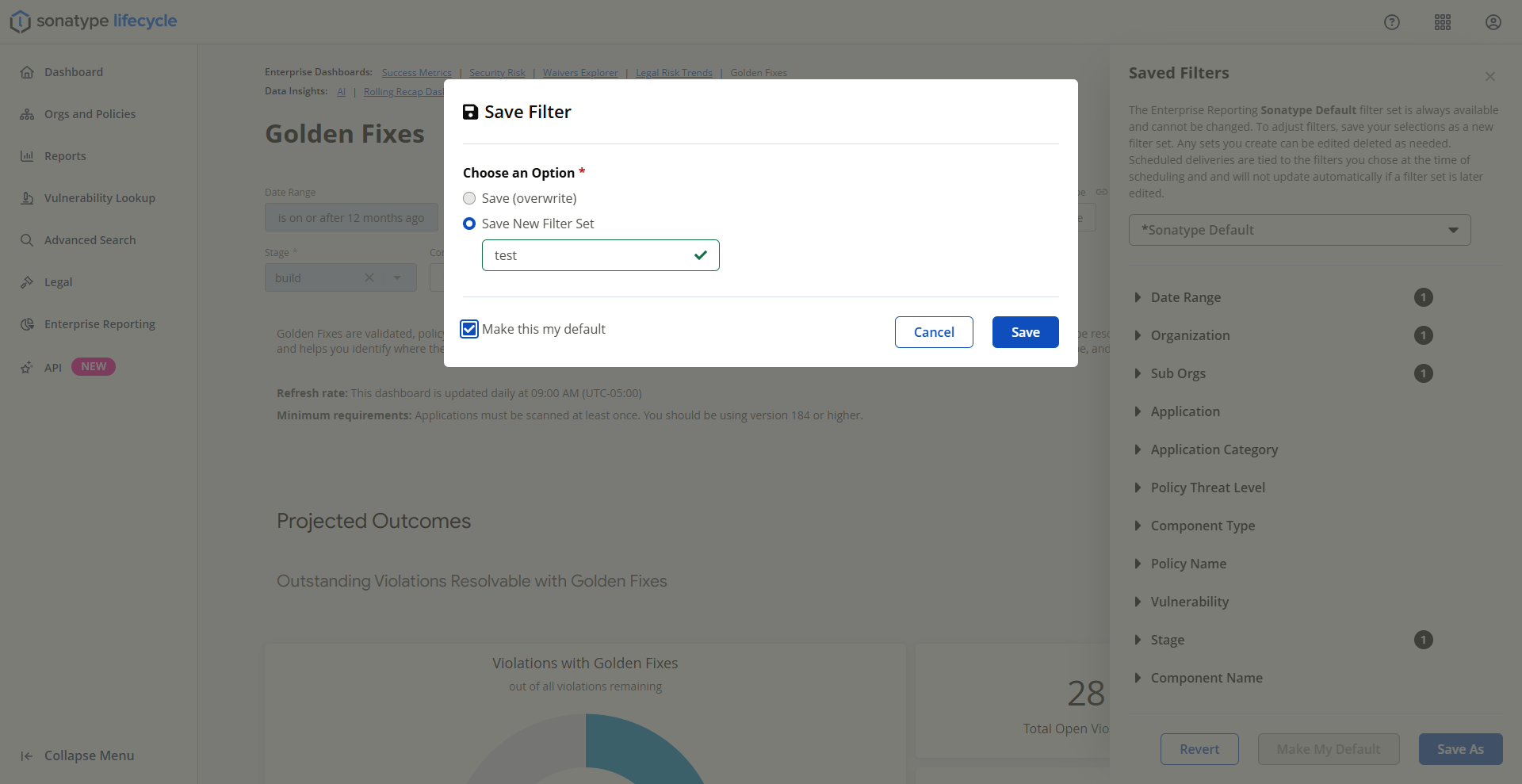
To update a set, apply it and choose Save to overwrite, or Save As to create a variation. An asterisk in the filter name indicates unsaved changes.
Make any saved set your personal default with Make My Default. Sonatype Default is always available and protected; deleting a personal default reverts to Sonatype Default.
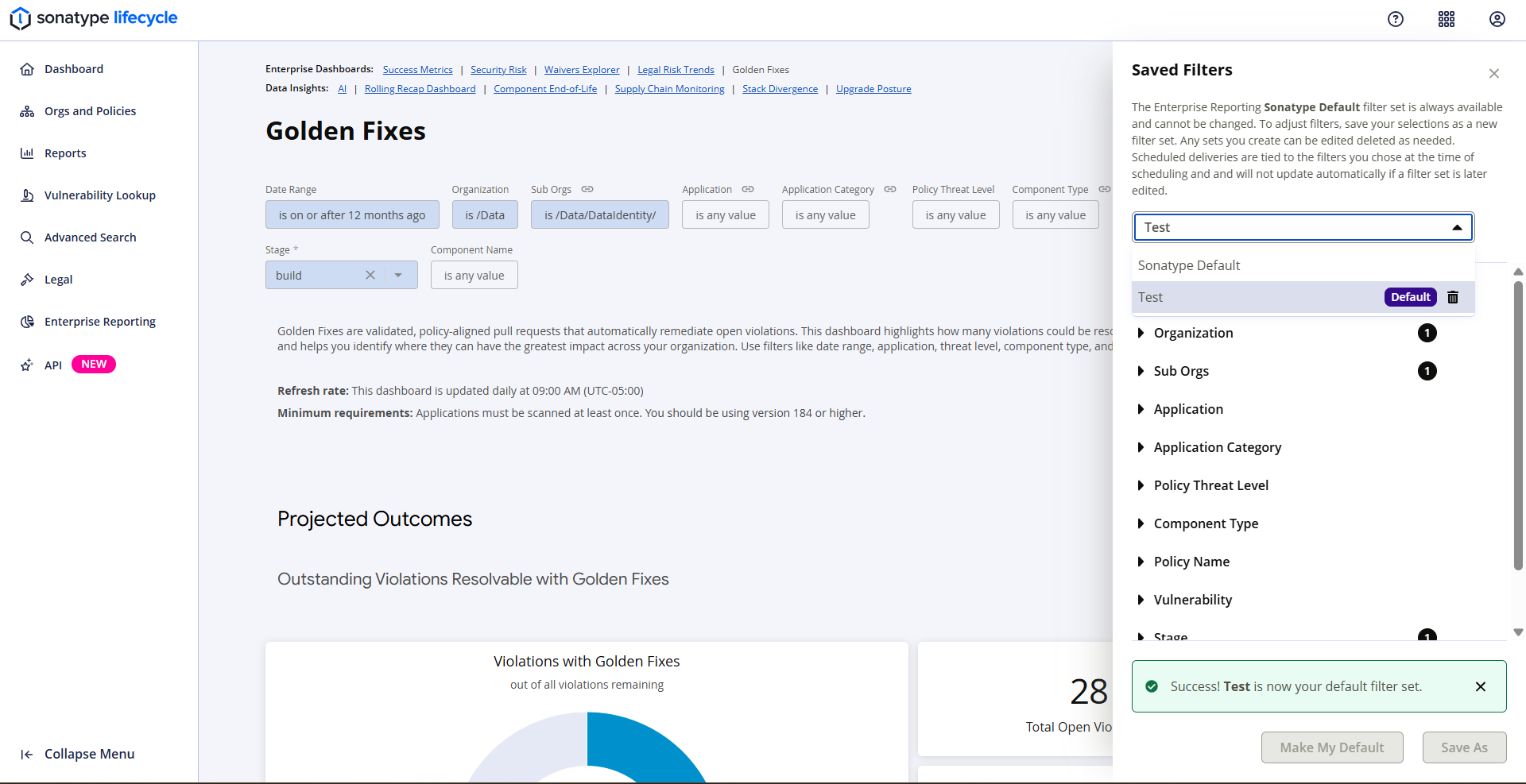
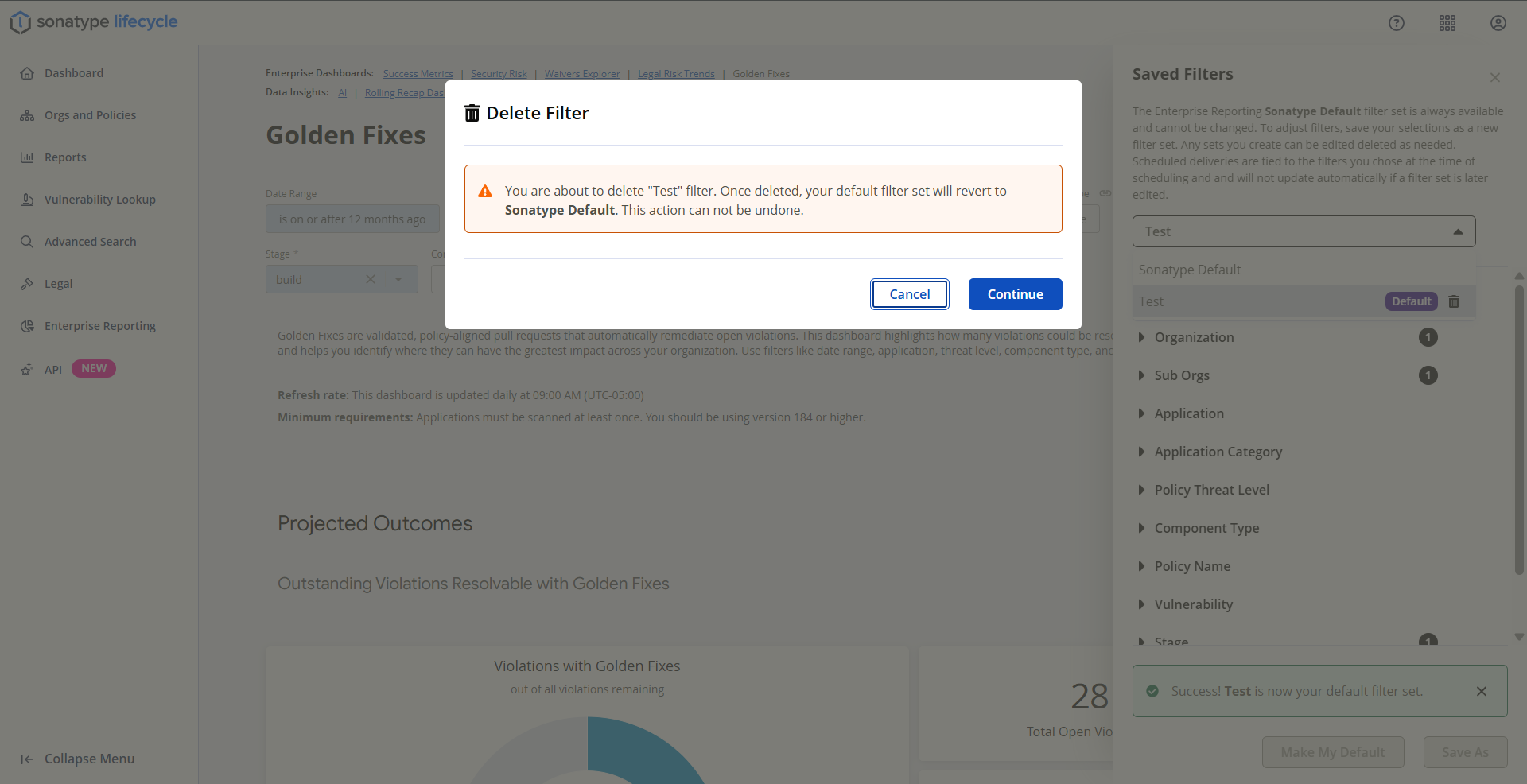
To delete a saved set, select it and confirm. Deletion removes the set from your account only and, if it was your default, resets the default to Sonatype Default.
A saved set stores only filters that exist on the dashboard where it was created. Applying it to another dashboard uses only matching filters; unsupported filters are ignored. Use Save As to preserve every selection across dashboards.
Scheduled exports or deliveries that reference a saved set use the values saved at schedule time; editing the saved set later does not change existing scheduled deliveries.
Note
Filter set names are validated as you type. Filter set name must be 1–35 characters and may not include special characters such as ^, &, %, or <. The UI shows an inline error for invalid characters or length violations and prevents saving until validation passes.
Projected Outcomes
The Projected Outcomes section shows open violations that may be resolved with Golden Fixes.
Outstanding Violations Resolvable with Golden Fixes
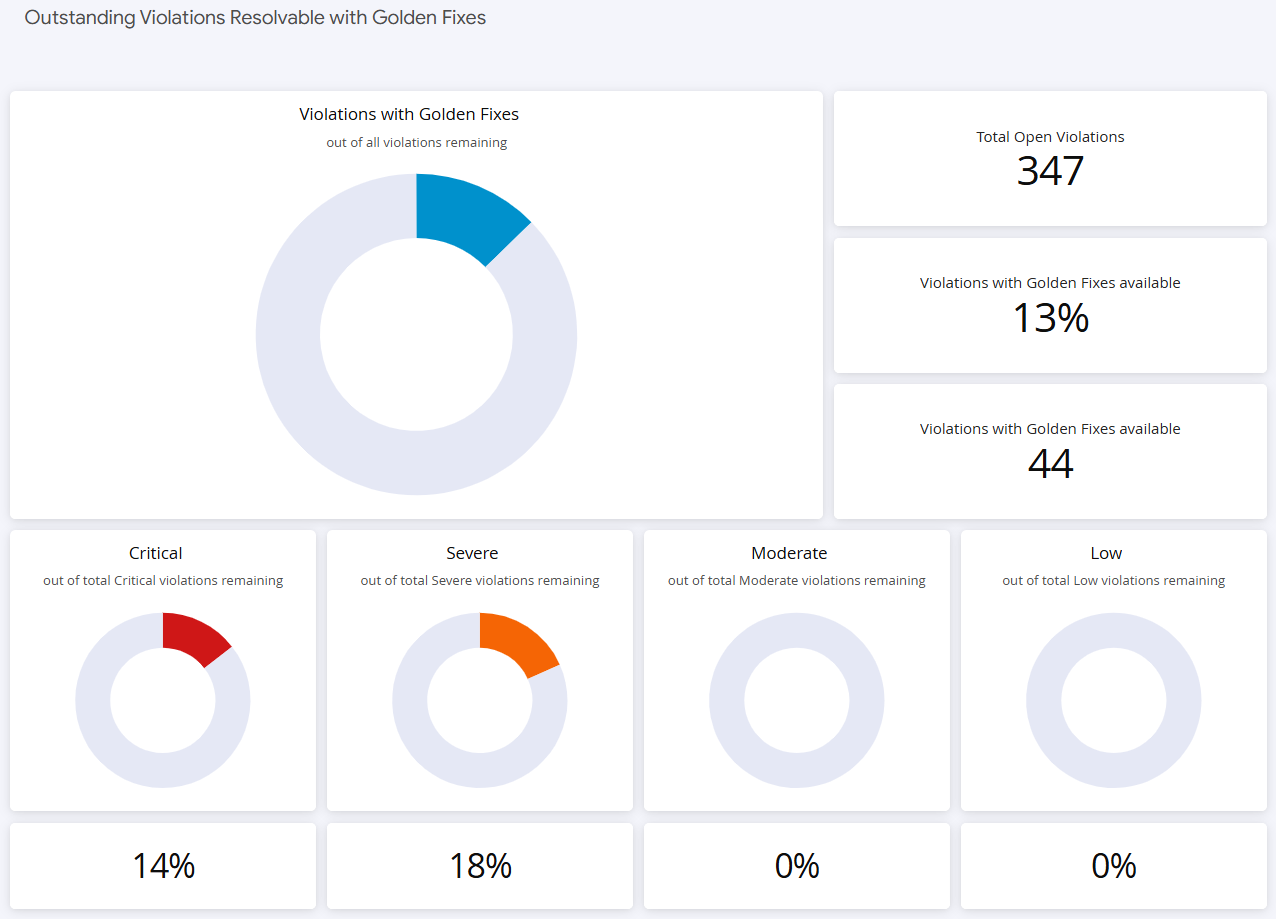
This section shows the total number of open violations and the portion of those violations that have Golden Fixes available.
The section includes:
Violations with Golden Fixes - Shows the share of open violations that have Golden Fixes available.
Total Open Violations - Shows the total number of open violations within the selected filters.
Violations with Golden Fixes available - Shows the percentage of open violations that have Golden Fixes available.
Violations with Golden Fixes available - Shows the count of open violations that have Golden Fixes available.
Critical - Shows Golden Fixes availability for Critical violations.
Severe - Shows Golden Fixes availability for Severe violations.
Moderate - Shows Golden Fixes availability for Moderate violations.
Low - Shows Golden Fixes availability for Low violations.
Use this section to understand where Golden Fixes may reduce the number of open violations in the selected scope.
Total Open Violations:
This metric displays the total count of open (non-waived) security violations across all applications within your selected filters. This represents your baseline security exposure before applying any golden fixes.
Violations with Golden Fixes Available
This section shows both the count and percentage of open violations that can be resolved using golden fixes. This metric helps you understand what portion of your current security exposure can be addressed through low-effort remediation.
This gives you immediate insight into the potential impact of implementing a golden fixes strategy across your organization.
Violations with Golden Fixes Available by Threat Level:
This pie chart breaks down Golden Fix opportunities by policy threat level, showing the following distribution across:
Critical (threat levels 8-10)
Severe (threat levels 6-7)
Moderate (threat levels 3-5)
Low (threat levels 1-2)
Use this visualization to prioritize your golden fixes adoption strategy, focusing first on critical and severe vulnerabilities that can be resolved with minimal effort. The chart shows both count and percentage for each threat level.
Applications and Components with Golden Fixes Available
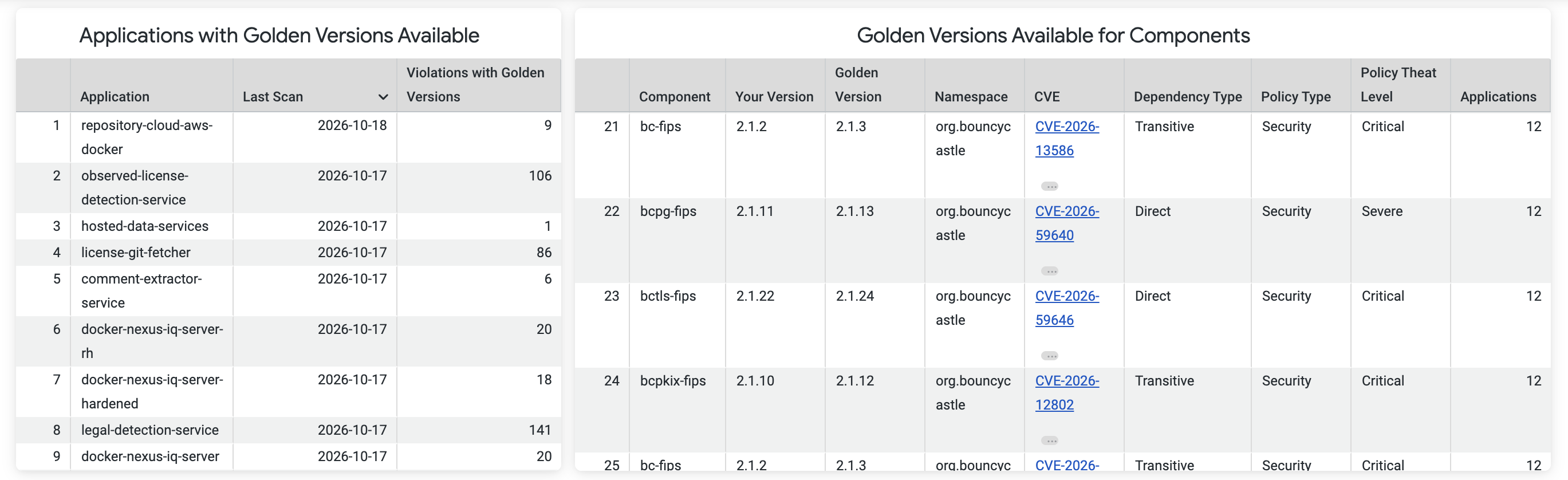
This section provides application-level and component-level details for Golden Fixes availability.
Applications with Golden Versions Available
This table lists applications that contain violations eligible for golden fixes remediation.
For each application, you can see the following :
Application Name - The application included in the selected dashboard filter scope.
Last Scan - The most recent scan date available for the application.
Violations with Golden Versions - The number of violations that have Golden Versions available for the application.
Applications that have been scanned but contain no violations will not appear in this table, as there are no security issues requiring remediation.
Golden Versions Available for Components
This detailed table shows the Golden Version recommendations available for your components. Each row represents a component violation and its recommended Golden Version.
Note
The dashboard now displays only one golden recommendation per component, representing the best verified and policy-compliant upgrade path.
This table includes:
Component - The component with a Golden Version available.
Your Version - The currently used component version.
Golden Version - The recommended Golden Version for remediation.
Namespace - The component namespace.
CVE - The vulnerability identifier associated with the violation.
Dependency Type - Indicates whether the component is a Direct or Transitive dependency. Undetermined indicates that dependency type information is unavailable.
Policy Type - The policy type associated with the violation.
Policy Threat Level - The threat level of the policy violation.
Applications - The number of applications in which the component violation appears.
Realized Success
Note
The Realized Success section requires Sonatype Lifecycle version 197 or higher. If you are using an earlier version, the section may appear blank or partially populated until you upgrade to the required version.
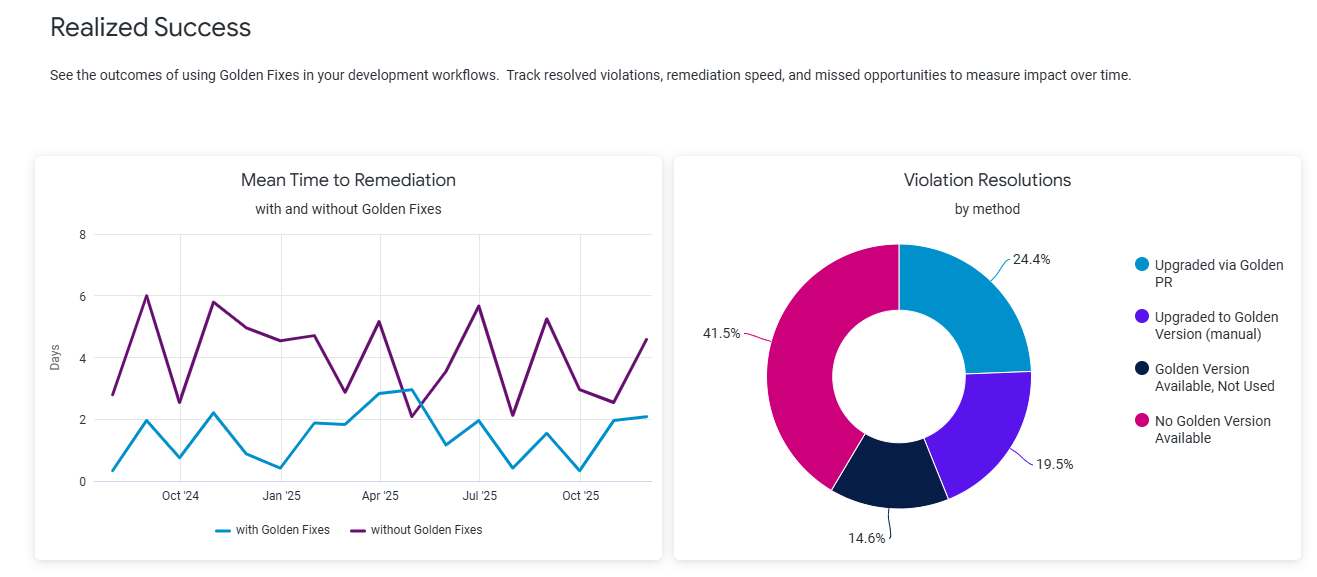
The Realized Success section provides visibility into the actual adoption and outcomes achieved using Golden Fixes. While the earlier part of the dashboard (Projected Outcomes) focuses on potential improvements that could be realized through Golden Fixes, this new section reflects the real-world results.
The upper charts and tables in the Projected Outcomes section continue to reflect open violations, while Realized Success displays data for breaches that have already been fixed. Waived violations are excluded from all calculations.
The data in Realized Success is shown by remediation method:
Upgraded via Golden PR: Represents violations that were remediated through Golden Pull Requests generated by Lifecycle.
Upgraded to Golden Version (manual): Represents violations that were remediated by manually upgrading to the Golden Version.
Golden Version Available, Not Used: Represents violations where a Golden Version was available but another remediation method was used.
No Golden Version Available: Represents violations remediated without a Golden Version available.
By comparing these groups, the dashboard helps users understand the effectiveness of automated Golden Fixes relative to manual remediation.
The Realized Success charts display comparative metrics such as Mean Time to Remediate (MTTR) for each remediation type. In general, violations resolved through Golden Fixes are expected to have a lower MTTR, reflecting faster remediation and greater efficiency achieved through automation.
The visualizations and data in this section help answer key questions such as:
How many violations have been successfully resolved using Golden Fixes.
How does the remediation time for automated fixes compare to manual fixes.
What proportion of overall remediated violations are attributed to Golden Fixes.
Mean Time to Remediation
The Mean Time to Remediation chart compares remediation time for violations with and without Golden Fixes.
The chart displays remediation time in days over time and includes the following series:
with Golden Fixes - Represents violations that were automatically remediated through Golden Pull Requests generated by Lifecycle. These are validated, policy-compliant upgrade paths that have been successfully applied to resolve violations.
without Golden Fixes - Represents violations that were fixed manually or through other means, such as removing or upgrading components outside of the Golden Fix process.
Use this chart to compare remediation speed across the selected dashboard filters.
Violation Resolutions
The Violation Resolutions chart shows how resolved violations are distributed by remediation method.
The chart includes the following resolution methods:
Upgraded via Golden PR
Upgraded to Golden Version (manual)
Golden Version Available, Not Used
No Golden Version Available
Use this chart to understand how resolved violations are attributed across Golden Fixes and non-Golden Fixes remediation methods.
Policy Violations & Golden Fix Availability
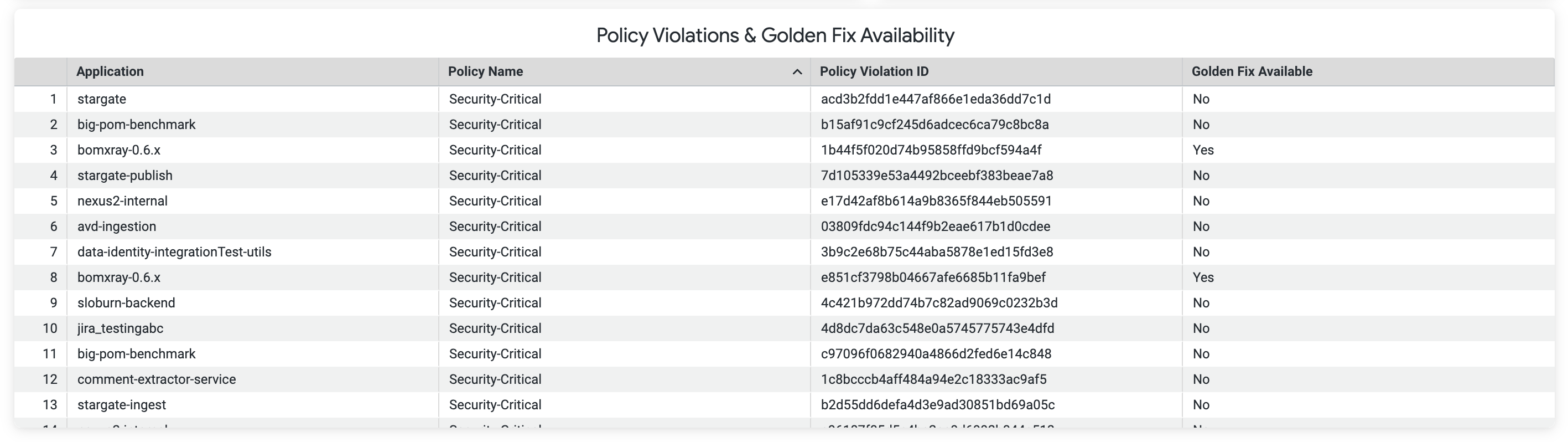
The Policy Violations & Golden Fix Availability table provides row-level details about resolved policy violations and whether a Golden Fix was available.
The table includes the following fields:
Application - The application associated with the policy violation.
Policy Name - The policy that triggered the violation.
Policy Violation ID - The unique identifier for the policy violation.
Golden Fix Available - Indicates whether a Golden Fix was available for the violation.
Note
Cross-filtering works consistently with other sections of the dashboard, though datasets for open and remediated violations do not overlap. Filters applied at the top of the dashboard (such as date range, application, threat level, or component type) also apply to the Realized Success section.