Getting Started with Firewall Pro
This page will help you get started protecting your package downloads with Firewall Pro in a few easy steps:
Sign up for Firewall Pro at https://firewall.sonatype.app and choose a subscription plan.
Create an API token.
Configure your repository manager proxy repositories to route traffic through Firewall Pro.
Supported Package Ecosystems
Firewall Pro protects packages fetched from the following official public registries:
npm Registry (registry.npmjs.org)
Python Package Index / PyPI (pypi.org)
NuGet Gallery (nuget.org)
Maven Central (repo1.maven.org)
Private registries, mirrors, and alternative package sources are not covered by Firewall Pro. Only packages fetched through the official upstream registries listed above are evaluated and protected.
Step 1: Sign Up for Firewall Pro
To sign up for Firewall Pro, navigate to https://firewall.sonatype.app and proceed through the login / sign-up process, entering required information in the form.
After signing in, you are redirected to the Firewall Pro dashboard. If you have not yet selected a subscription plan, the dashboard displays an option to choose a plan. You will not be able to create an API token or configure protection until you have an active subscription.
Select Purchase Firewall Pro to choose and purchase your subscription plan.
Step 2: Create an API Token
API tokens are credentials that authenticate your repository manager's connection to Firewall Pro. Every request that Firewall Pro receives must include a valid API token.
Firewall Pro supports two authentication methods; both use your API token as the credential:
Bearer token – Use the API token directly as a Bearer token in the HTTP Authorization header.
Basic Auth – Some integrations require HTTP Basic Auth. In this case, you will use the following values:
Username – Use your Firewall Pro organization username. This is available under Settings → API Tokens → View Username.
Password – Use your API token.
To generate an API token, take the following steps:
Tip
Make sure to copy this token before closing the modal window as the value cannot be retrieved later.
Navigate to Settings → API Tokens. Here you will see a list of existing API tokens.
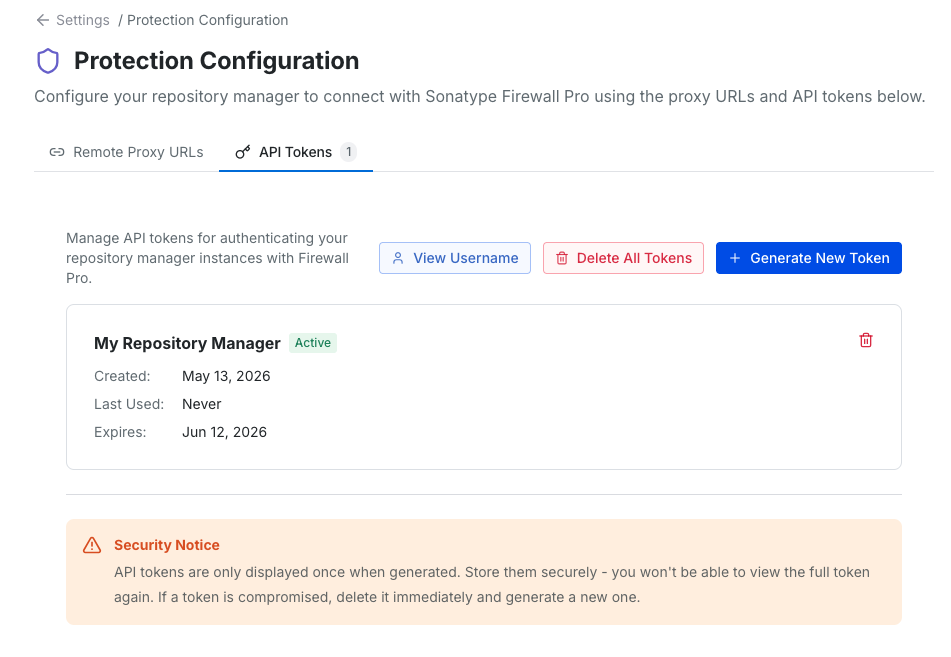
Select Generate New Token.
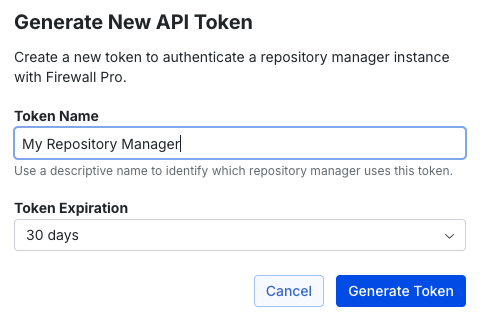
Input a unique Token Name.
Select a Token Expiration period from the drop-down menu; this can be 30 days, 60 days, 90 days, or Never.
Select Generate Token.
Copy your newly generated token to your clipboard using the Copy Token to Clipboard button.
Your new token will now be listed in the API Tokens tab alongside other existing tokens. You can select the trashcan icon to delete a token you no longer need.
Step 3: Configure Your Repository Manager to Use Firewall Pro
Once you have generated an API token to use in your repository manager, you must configure your proxy repositories to route package requests through Firewall Pro. To do this, you will need both your API token and a Firewall Pro proxy URL for each supported package ecoystem.
You can find these Firewall Pro proxy URLs under Settings → Remote Proxy URLs. There you will find a dedicated URL for each ecosystem. These URLs follow the pattern described in the table below:
Package Ecosystem | Proxy URL |
|---|---|
npm Registry | firewall.sonatype.app/npm/ |
PyPI | firewall.sonatype.app/pypi/ |
NuGet Gallery | firewall.sonatype.app/nuget/ |
Maven Central | firewall.sonatype.app/mvn/ |
Note
Firewall Pro only covers packages fetched from the official upstream public registries listed in the Supported Package Ecosystems section.
If a proxy repository was previously pointing to a different registry, mirror, or private source, those packages are not protected by Firewall Pro.
Use a separate proxy repository for any sources you still need to access.
Now that you have both your API token and your proxy URLs, take the following steps for each supported ecosystem:
Steps for Formats Supporting Bearer Tokens
In your repository manager, locate your existing proxy repository for that ecosystem.
Replace the remote storage URL with the Firewall Pro proxy URL for that ecosystem.
Add your API token as the authentication credential.
Save and test the connection.
Steps for Formats Requiring Basic Auth
In your repository manager, locate your existing proxy repository for that ecosystem.
Locate the authentication section for that repository and ensure it is set to Basic Auth or equivalent.
In the Username field, provide your Firewal Pro organization username. This is available in Firewall Pro under Settings → API Tokens → View Username.
In the Password field, paste your Firewall Pro API token.
Save and test the connection.