Waiver Management
Manage waivers from the repository results in components on the dashboard or tab, or directly from the waiver dashboard.
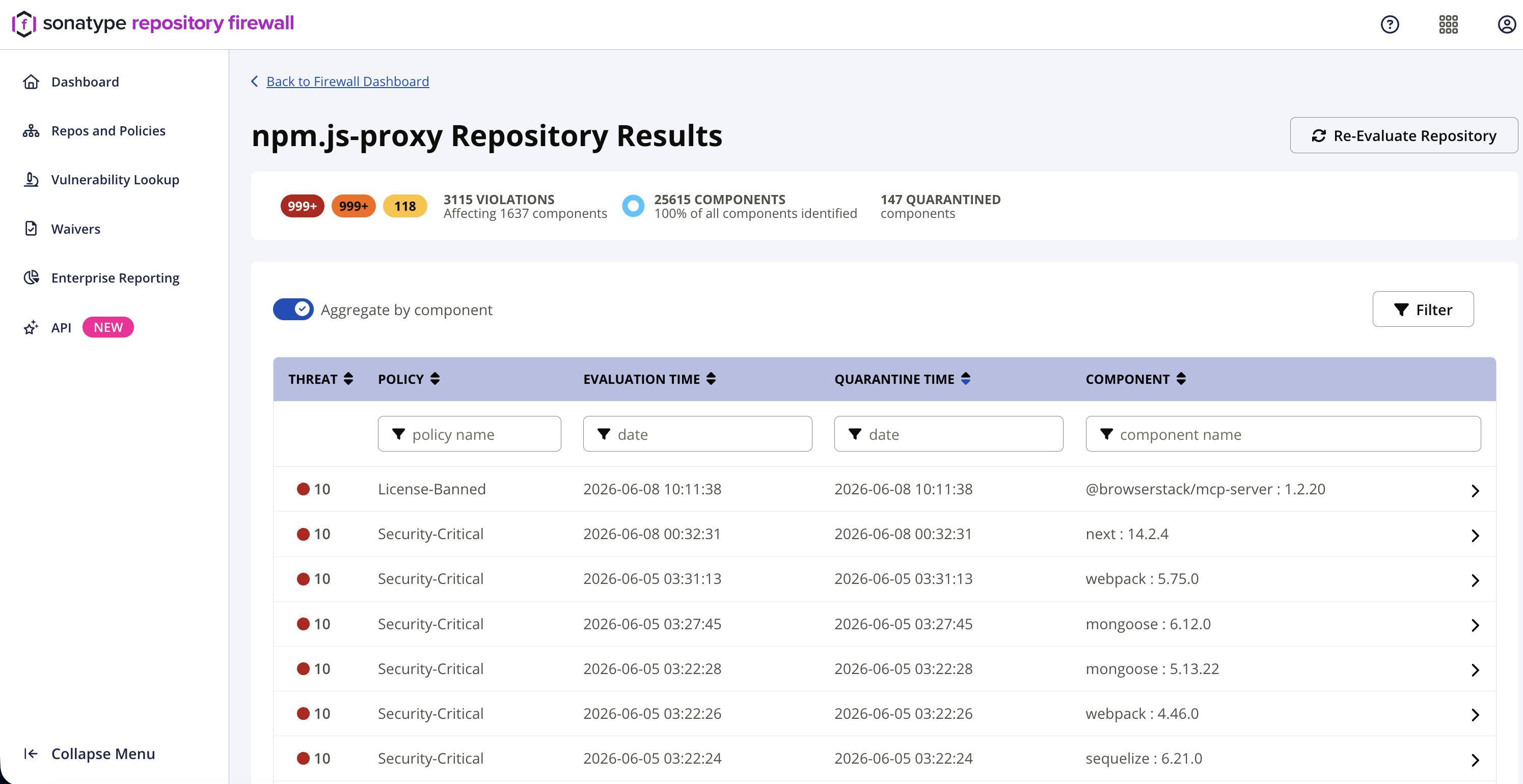
Repository Results Page - click on any repository in the dashboard components view.
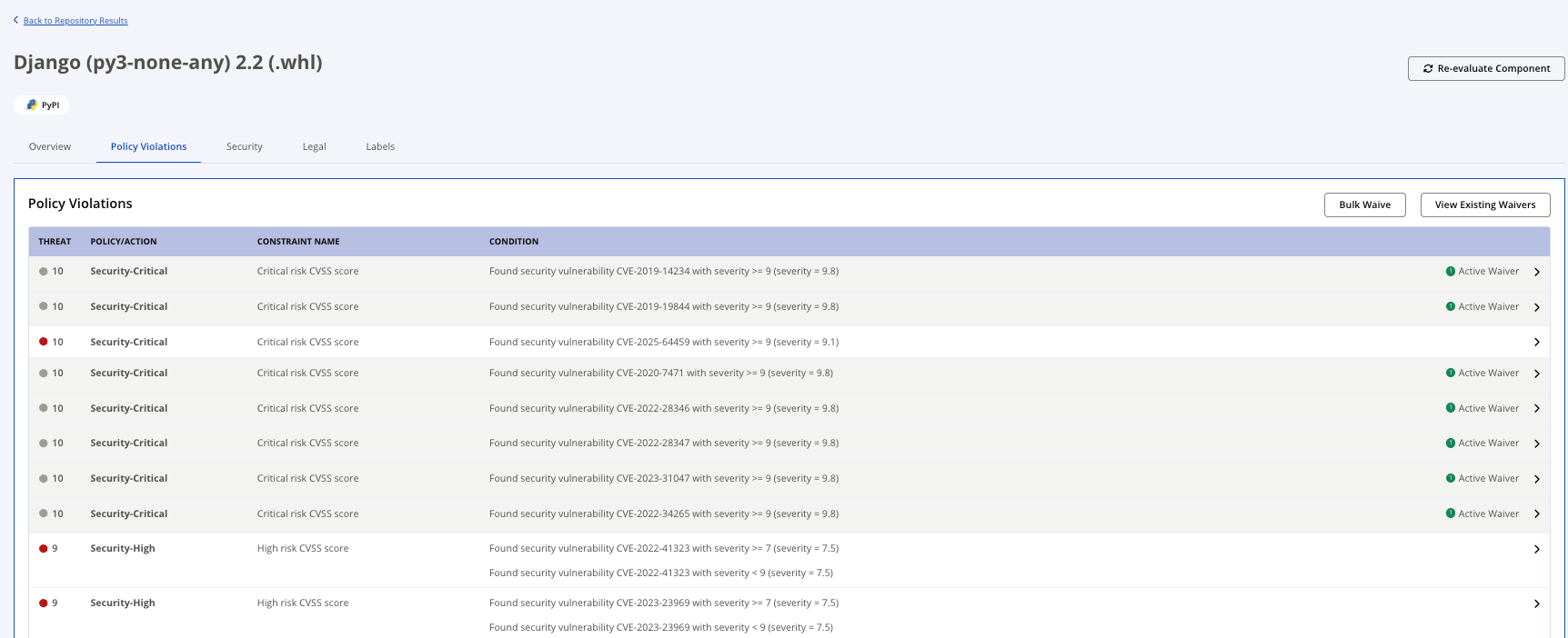
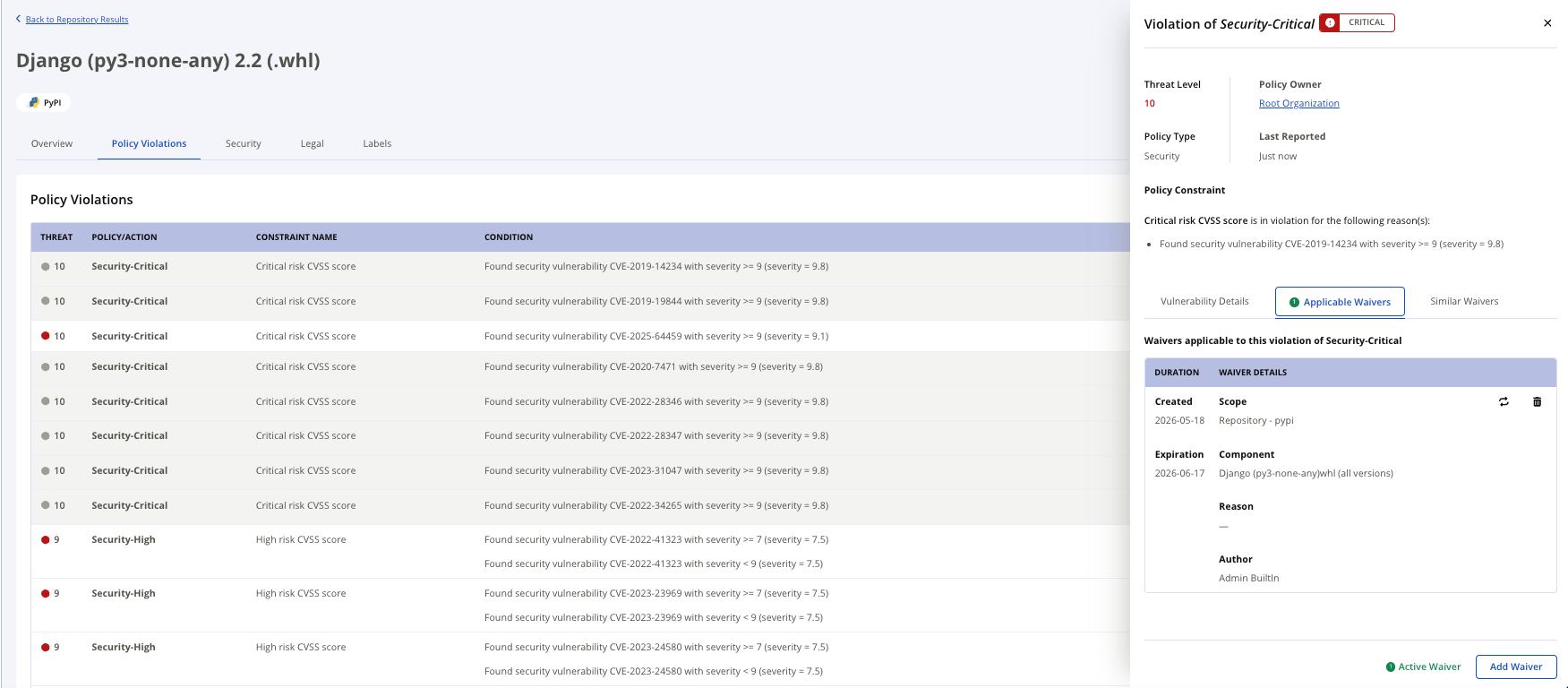
Policy Violations view - click on a violation in the repository results .
Waiver Permissions
The ability to add waivers is limited based on the permissions included in the user's role.
The Waive Policy Violations permission is needed to manage waivers. Users without these permissions have the option to request a waiver by sharing an API call with a user who has the correct permissions.
Applicable Waivers for Violation
Clicking on the Manage Waivers button from the Policy Violations tab inside an application repository results will navigate to the Waivers for Violation page.
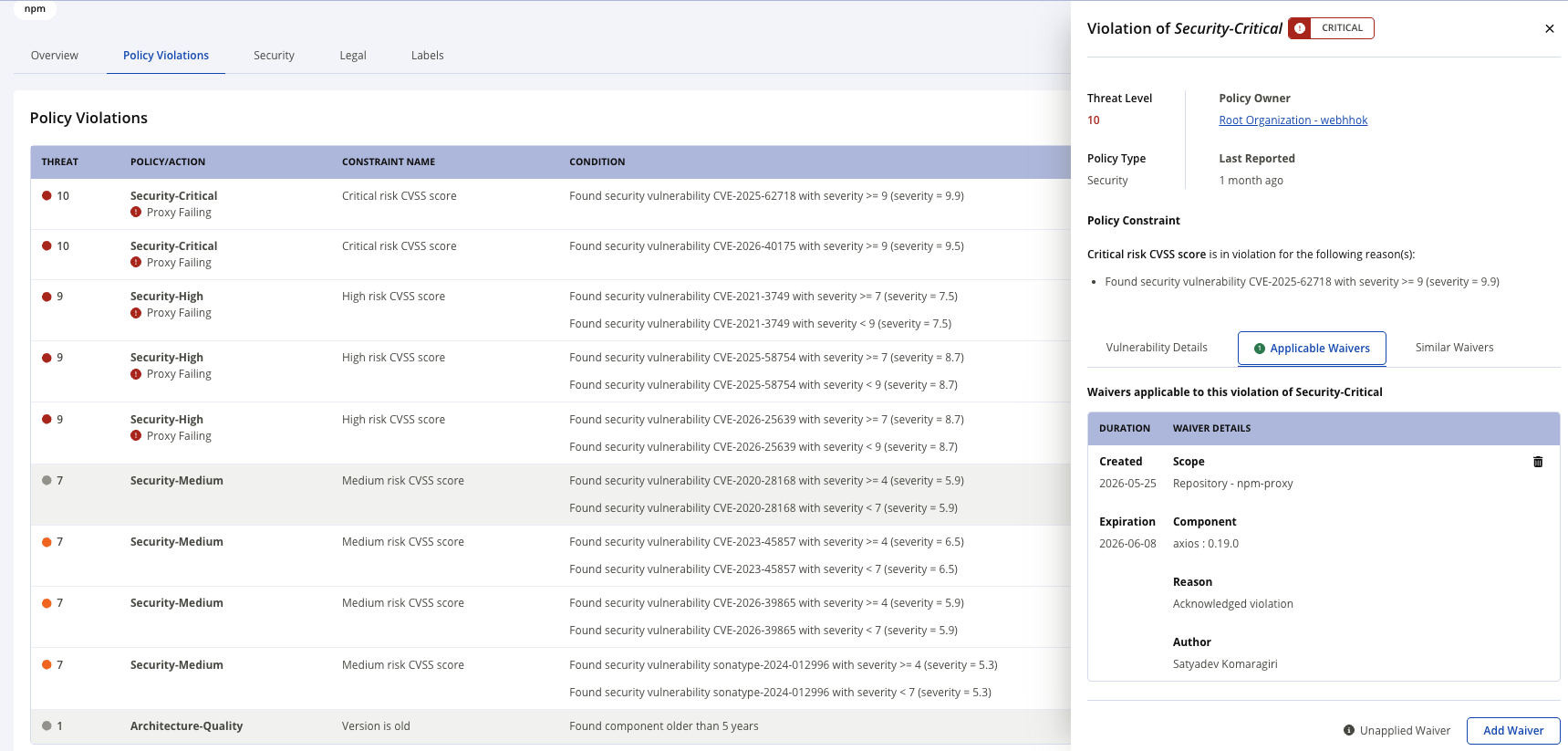
A summary of the violation details, along with a list of any applicable and similar waivers is displayed.
Viewing Waivers from the Waivers tab
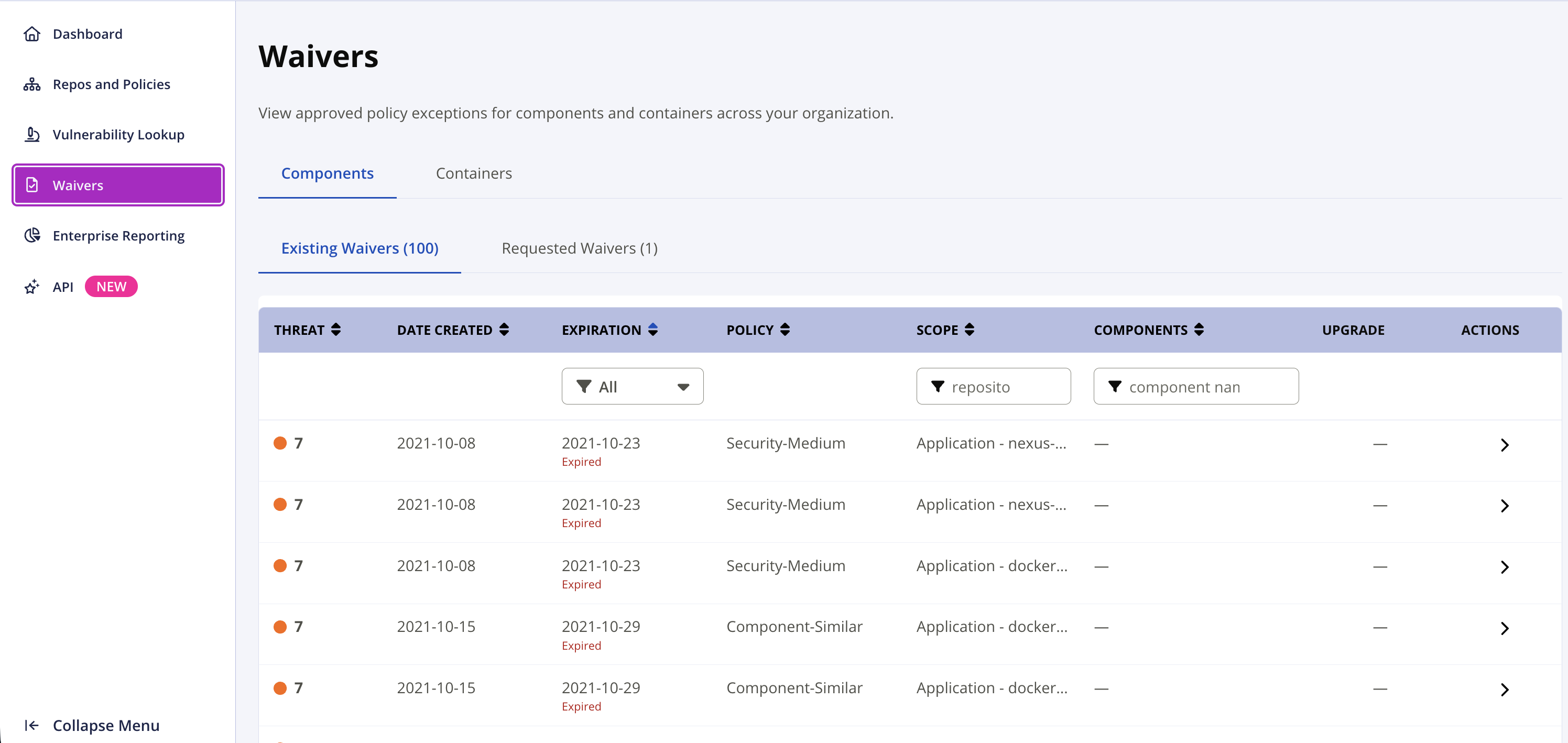
To view a list of waivers, click the Waivers on the left panel.
This shows a list of waivers from applications or organizations you have permission to view. Click on any row to go to the Waiver Detail View and see more details about the waiver. Click on Renew button to renew a waiver and Delete button to remove a waiver.
Viewing Waivers from the Policy Violations Page
Click on a Policy Violations from the Repository Results page on the Dashboard. All applicable waivers to this violation will appear under the violation details. Click on any row to go to see more details about the waiver. Click on the Add Waiver button (based on your permissions), to add a new waiver. Also click on Renew button to renew a waiver and Delete button to remove a waiver.
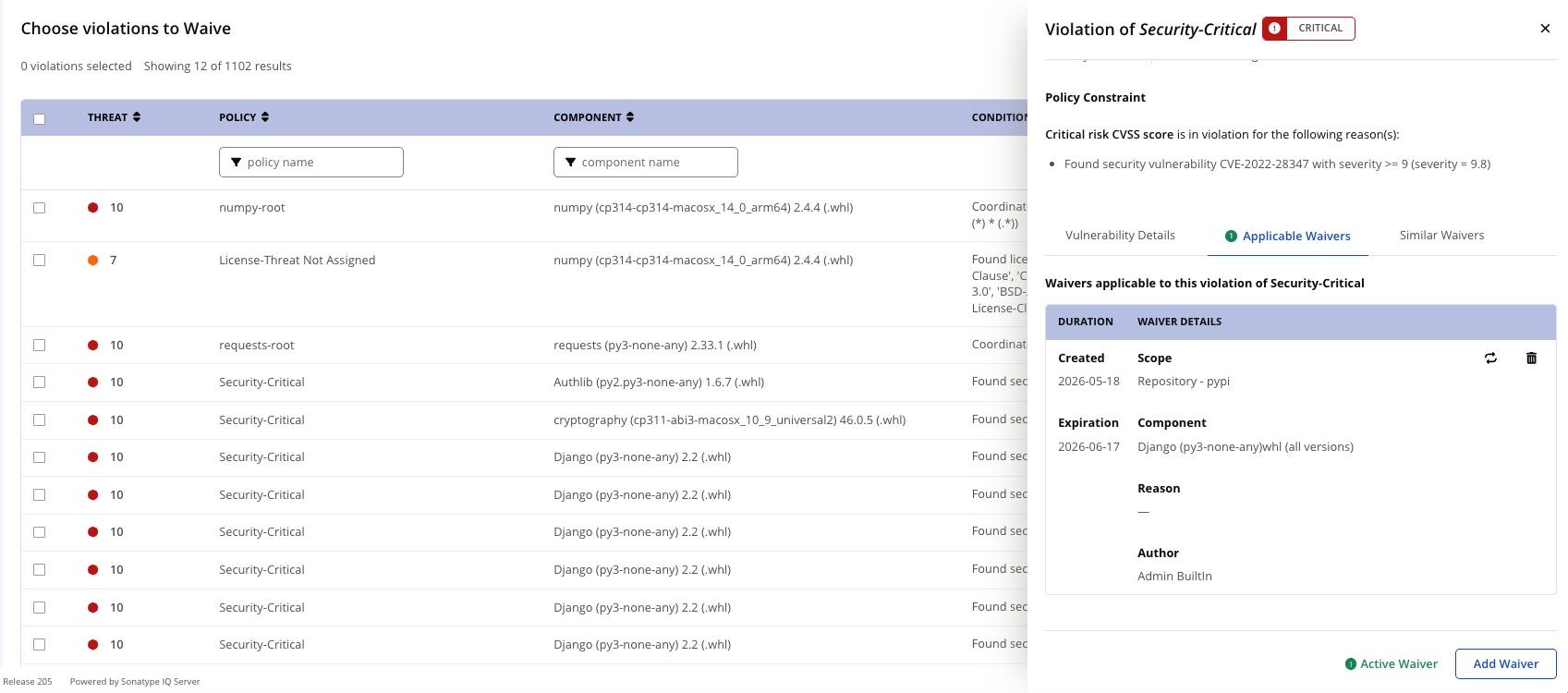
Viewing Waivers from the Bulk Waivers Page
Click on a Policy Violations from the Repository Results page on the Dashboard and go to Bulk Waiver page. All applicable waivers to will appear. Click on any row to go to see more details about the waiver. Click on the Add Waiver button (based on your permissions), to add a new waiver. Also click on Renew button to renew a waiver and Delete button to remove a waiver.
Filtering Dashboard
Use the Filtering Waiver Dashboard to view and manage policy waivers.
The dashboard includes the following columns:
Column | Description |
|---|---|
Threat | Threat severity. |
Date Created | Waiver creation date. |
Expiration | Waiver expiration status. |
Policy | Associated policy. |
Scope | Repository name. |
Components | Component name. |
Upgrade | Upgrade information. |
Actions | Available waiver actions. |
Expiration column
The Expiration column shows the waiver status.
Status | Description |
|---|---|
Date | Waiver expiration date. |
Never | Waiver does not expire. |
Auto | Auto waiver. |
Expiration indicators are color coded:
Color | Description |
|---|---|
Red | Expired or expires in 1-7 days. |
Orange | Expires in 8-30 days. |
Green | Expires in 31 or more days. |
Filters
Use the filter row below the column headers to filter waivers.
Filter | Description |
|---|---|
Expiration | Filters by expiration status. |
Scope | Searches by repository name. |
Components | Searches by component name. |
The Expiration filter supports the following values: All, Expired, In 24 Hours, In 7 Days, In 30 Days, In 90 Days, In Over 90 Days, Auto, and Never.
You can combine multiple filters.
Adding a Waiver
Click on the Add Waiver button in the Applicable Waivers table to go to the Add Waiver page.
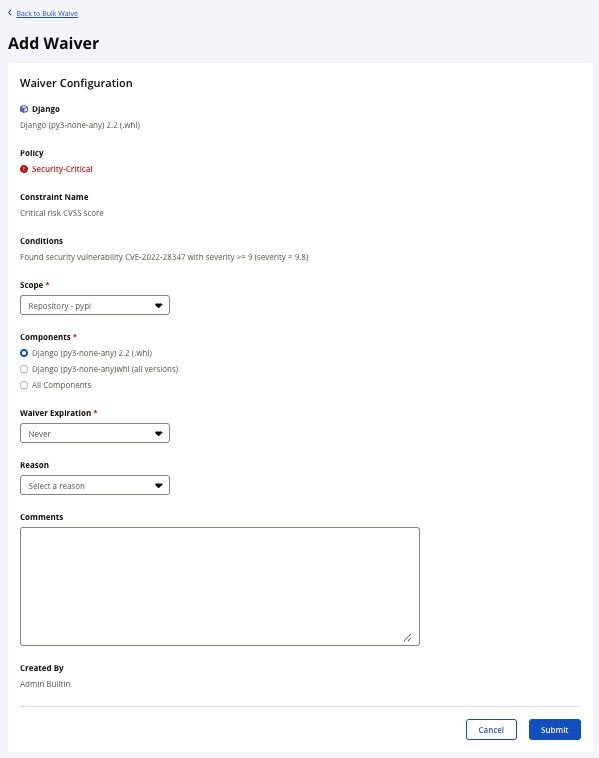
The component's name and coordinates, the selected policy, and severity are shown here. You'll also see the Constraint Name and the Conditions that the waiver will cover.
Hierarchy Scope
Choose the scope where the waiver is applied.
Application - This current application
Organization - This application's parent organization and all organizations and applications under it
Root Organization - All applications and organizations
For Firewall waivers, choose from the current Repository, All Repositories, or Root Organization.
Component Scope
Choose the component scope for which the waiver applies to. All versions and all components include future components which have not been released.
Component Name - hash matching to this specific version
Component Name (all versions) - name-based wild card matching to all current and future versions of that component.
All Components - any current and future components matching the violation criteria
Waiver Expiration
Select an expiration duration for this waiver. Waivers expire at the end of the given day.
Never - the waiver will remain in place until deleted
(7, 14, 30, 60, 90, 120) days - number of days until the waiver expires
Custom - configure a specific date for the waiver to expire. Must be later than the current date
Waiver Reasons
Select a Waiver Reason for this waiver. Available values are detailed below
Reason | Description |
|---|---|
Acknowledged Violation | The risk does not meet the threshold for immediate action or it cannot be prioritized by the development teams due to other deliverables. This reason is best used when you need to waive a violation for a short period of time so that the development team can appropriately asses the violation and plan remediation actions. It could also be used as part of an automated waiver to accept risk for violations that do not meet your organization's threshold for development disruption. |
Mitigated Externally | The violation was remediated via external means (e.g. changing configuration options or network options to mitigate a vulnerability). |
No Upgrade Path | There is no upgrade path available for the violating component. |
Not Reachable | Reachablity analysis, or your analysis, has determined that the vulnerability is not reachable, so the probability of exploitation is lower. |
Not Exploitable | The vulnerability that is triggering this violation is not exploitable in the implementation environment. For example, if the vulnerability requires a network connection and your application is running in an air-gapped environment it would not be exploitable. |
Researching | Research is in progress on the impact of this violation. |
Other | For all use cases not covered by the above. |
Comments
Add reference details to the waiver. Common use cases:
justification for the waiver
validation and testing process
reference links for additional documentation
Waiver Detail View
The Waiver Detail View page displays information about a selected waiver.
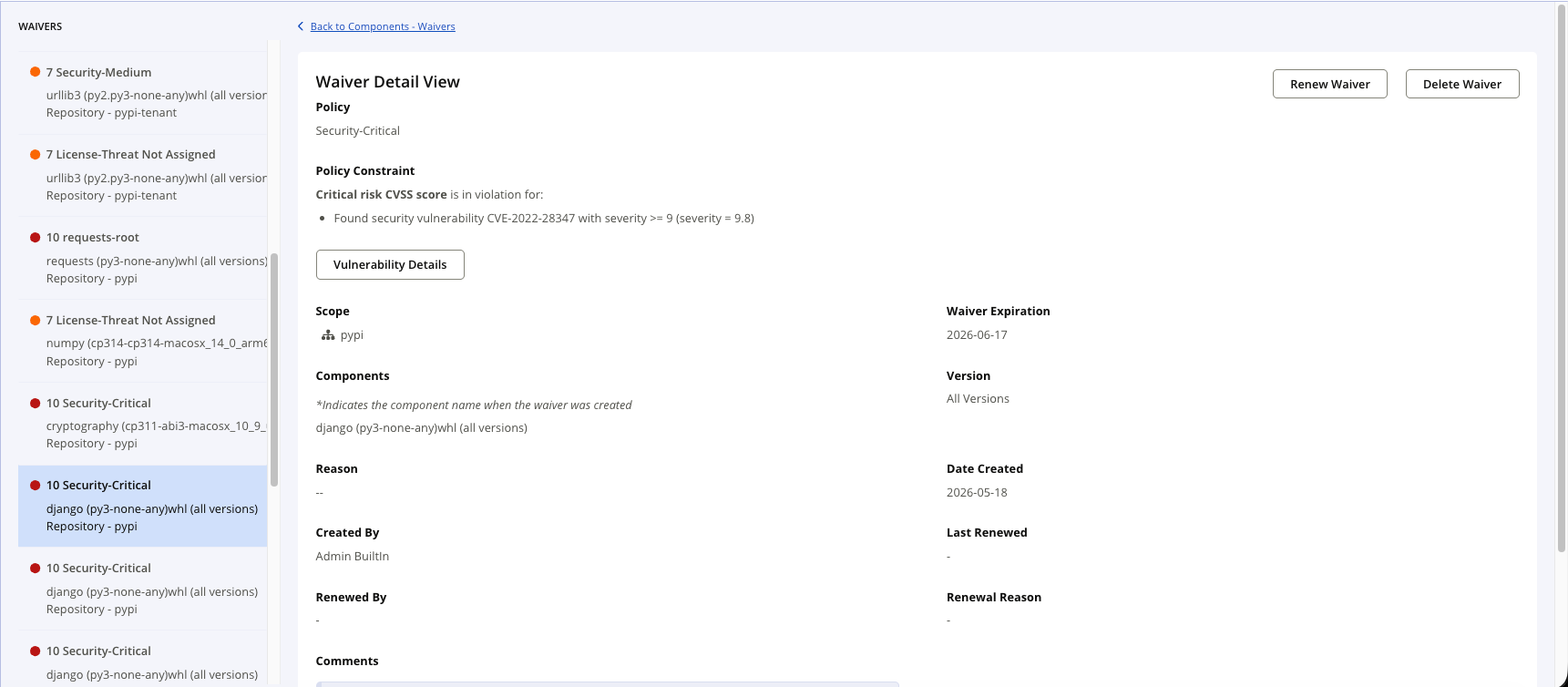
The page include the following information:
Field | Description |
|---|---|
Policy | The policy associated with the waiver. |
Policy Constraint | The policy constraint that the waiver applies to. |
Scope | The scope where the waiver applies. |
Components | The component associated with the waiver. If applicable, this section also indicates the component name when the waiver was created. |
Version | The component version covered by the waiver. |
Reason | The reason provided for the waiver. |
Waiver Expiration | The date when the waiver expires. |
Date Created | The date when the waiver was created. |
Created By | The user who created the waiver. |
Last Renewed | The date when the waiver was last renewed. Displays if the waiver has not been renewed. |
Renewed By | The user who last renewed the waiver. Displays if the waiver has not been renewed. |
Renewal Reason | The reason selected when the waiver was last renewed. Displays if no renewal reason exists. |
Vulnerability Details
Click on Vulnerability Details button to view more information about the vulnerability associated with the waiver.
Renew Waiver
Click on Renew Waiver button to renew the waiver.
Delete Waiver
Click on Delete Waiver button to delete the waiver.
Comments
The comments field is shown when a waiver comment exists or when the waiver has been renewed.
The section includes separate entries for:
Renewed - The comment entered when the waiver was renewed. Displays if no renewal comment exists.
Created - The original waiver comment. Displays if no original comment exists.
Requesting a Waiver
Go to the Policy Voilations page on the Dashboard, click on any row to go to see more details about the waiver. Go to Applicable Waivers and click Request Waiver button at the right.
For more information, see Request Waiver.
Renewing a Waiver
To renew a waiver from Renew Waiver page from either of the following locations:
Go to the Waiver Dashboard and click Renew Waiver button at the end of the row.
Go to the Bulk Waivers page, click on any row to go to see more details about the waiver. Go to Applicable Waivers and click Renew Waiver button at the right.
Go to the Policy Voilations page on the Dashboard, click on any row to go to see more details about the waiver. Go to Applicable Waivers and click Renew Waiver button at the right.
Go to the Waiver Detail View and click Renew Waiver button at the top right.
For more information, see Renew Waiver.
Removing a Waiver
To delete a waiver, either:
Go to the Waiver Dashboard and click Delete Waiver button at the end of the row.
Go to the Bulk Waivers page, click on any row to go to see more details about the waiver. Go to Applicable Waivers and click Delete Waiver button at the right.
Go to the Policy Voilations page on the Dashboard, click on any row to go to see more details about the waiver. Go to Applicable Waivers and click Delete Waiver button at the right.
Go to the Waiver Detail View and click Delete Waiver button at the top right.
The confirmation dialog is displayed to confirm deletion.